 Commander One
The best FTP client for Mac to manage hosting files
Work with WordPress site files directly from your Mac with Commander One. Connect via FTP/SFTP to upload themes and plugins, edit configuration files, and transfer files using a fast, intuitive dual-pane interface.
4.7
based on 1,103 user reviews
 Optimized for both Apple silicon and Intel
 Approved by Christian Ghisler as Total Commander for Mac
Where Generic FTP Clients Fall Short for WordPress
Most traditional FTP clients often lack features tailored to WordPress development. Here's how these limitations can slow down your workflow.

No dual-pane navigation
Switching between local folders and your FTP server takes extra time and makes it harder to keep track of your work.
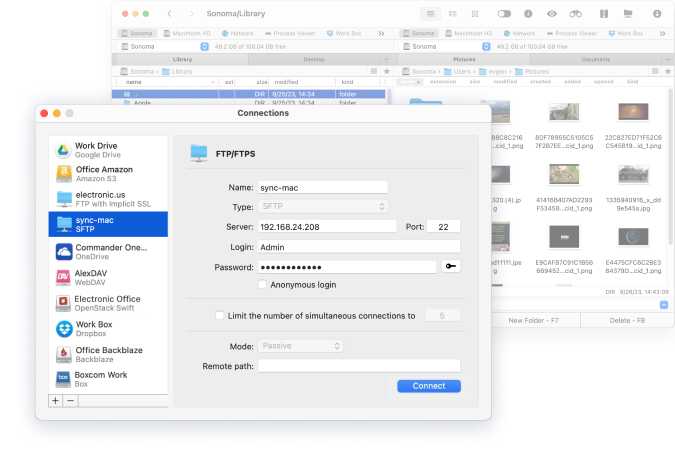
Commander One's dual-pane interface displays local and server files side by side, making it easy to navigate both locations and transfer files.

Limited server-side search
Need to find a specific plugin file or code snippet in /wp-content/? With many FTP clients, you have to navigate folders manually to locate what you need.
Commander One lets you search directly on your FTP/SFTP server by filename, file content, or RegEx pattern — without downloading files to your Mac.

Extra steps to extract archives
Installing a .zip theme with a standard FTP client often requires several steps: download the archive to your Mac, extract it using another app, and upload the unpacked folder to your server.
Commander One has a built-in archiver that lets you extract ZIP, RAR, and 7z archives directly on your FTP/SFTP server.
Work with WordPress Files Using Commander One
Explore common WordPress file management tasks you can perform on your Mac using FTP/SFTP connections.

Upload Theme
Drag and drop a new theme into /wp-content/themes/. Extract archives directly on the server.

Edit wp-config.php
Edit configuration files directly on your server. Update database credentials, debug settings, or security salts without downloading.

Deploy Plugins
Upload multiple plugin folders to /wp-content/plugins/ at once — no WP Admin required.

Back up wp-content
Copy the entire wp-content folder to your Mac via SFTP, then zip it locally. No server-side compression is needed, so the backup is simpler and puts less load on the server.
Search Server Files
Locate files in /wp-content/ on your FTP/SFTP server by filename, file content, or RegEx pattern. Find what you need without downloading anything to your Mac.

Manage .htaccess
Make hidden files visible, open and edit .htaccess, and manage redirects and server rules directly — no cPanel needed.

Fix File Permissions
Adjust file and folder permissions (chmod) directly on your server to troubleshoot WordPress upload errors and access issues.

Migrate a Site
Move your entire WordPress installation from one server to another. Connect to both servers in Commander One and transfer files directly between them.
Essential Features for Managing WordPress via FTP/SFTP
Powerful tools to speed up remote file operations and simplify your workflow on Mac.
Dual-Pane Interface
Keep your local files and FTP server side by side. Navigate both, compare their contents, and transfer files without switching windows.
Unlimited tabs per panel

SFTP Support
Kinsta, WP Engine, and SiteGround all require encrypted SFTP. Connect to any of them quickly and securely.
SSH-2 encryption

Built-in Archiver
Create and extract ZIP, 7z, and TAR.GZ archives, and open RAR files right on the FTP server, with no download needed.
ZIP · RAR · 7z · TAR.GZ
Advanced Search on Server
Search for files in /wp-content/ directly on the FTP/SFTP server. Find files by name, content, or RegEx without downloading them to your Mac.
RegEx · content search · FTP/SFTP

Terminal Emulator
Run local Mac commands in Commander One’s built-in terminal. No need to switch to Terminal.
Ctrl+O · PRO Pack

File Editor
Edit PHP, CSS, JS, and config files in any editor. Save, and Commander One uploads the changes automatically.
F4 to open any file