 Commander One
The best FTP client for Mac to manage hosting files
Connect to Bluehost, SiteGround, GoDaddy, Hostinger, cPanel and any FTP/SFTP hosting in seconds. Manage your server files without a browser-based file manager.
4.7
based on 1,103 user reviews
 Optimized for both Apple silicon and Intel
 Approved by Christian Ghisler as Total Commander for Mac
Compatible with:
-
 Bluehost
-
 SiteGround
-
 GoDaddy
-
 Hostinger
-
 Kinsta
-
 WP Engine
-
 DreamHost
- + any FTP/SFTP host
Manage files on your devices
Effortlessly manage files across all your devices - iOS, Android, or MTP - directly from your Mac. Simply connect your device via USB cable and it will appear in Commander One as a mounted drive.

Create multiple connections
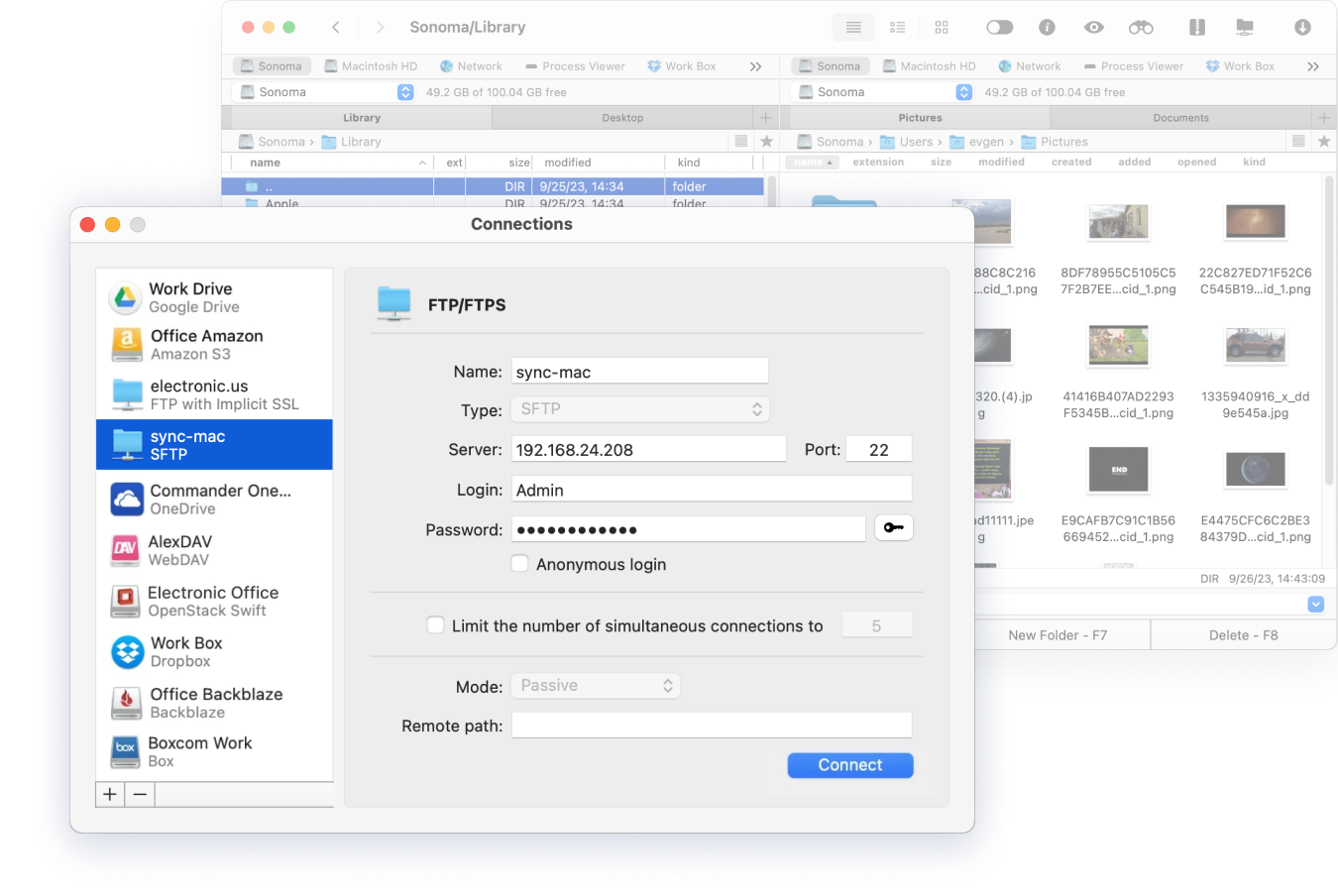
Connect to multiple servers simultaneously for seamless FTP file transfers, enhanced productivity, and a more efficient workflow.

Transfer files and folders to/from FTP
Use iOS file transfer functionality to carry files from one Mac to another.

Open and edit files
Access and edit files directly within Commander One's interface — no download required. Press F4 to open any file in the built-in editor and save changes straight to the server.

Protect files with encryption
Encrypt your personal data stored online to ensure that only those with the decryption key can access and manage it. SFTP transfers are secured via SSH-2 by default.
Why use an FTP Client instead of cPanel File Manager?
Browser-based file managers are built for occasional use.
Here's what you're missing.
Here's what you're missing.
Browser-based

cPanel File Manager
-
One file at a timeUploading 200 files via cPanel browser interface is slow and frustrating.
-
Session timeoutsBrowser session expires mid-upload. Start over. Again.
-
No local comparisonCan't see local and server files side by side in a browser window.
-
Slow navigationEvery folder click is a page load. Deep directories take forever.
Desktop app - macOS

Commander One FTP Client
-
Bulk drag & dropSelect 200 files, drag to server. Uploads automatically, one by one with real-time progress.
-
Stable persistent connectionDesktop app maintains a persistent connection. Queue manager handles interruptions.
-
Dual panel viewLocal files on the left, hosting server on the right - always side by side.
-
Instant navigationBrowse directories at full speed. No page reloads, no waiting.
Connect to FTP hosting in 4 steps
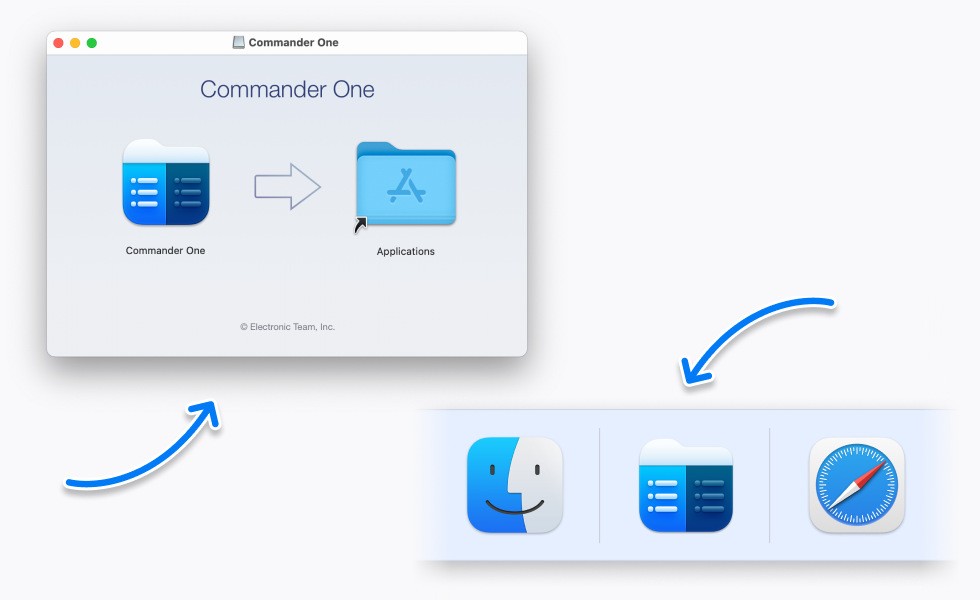
From download to connected — takes less than 2 minutes.
1
The classic dual-pane interface makes it easy and convenient to manage multiple folders and directories and transfer files between them.
2
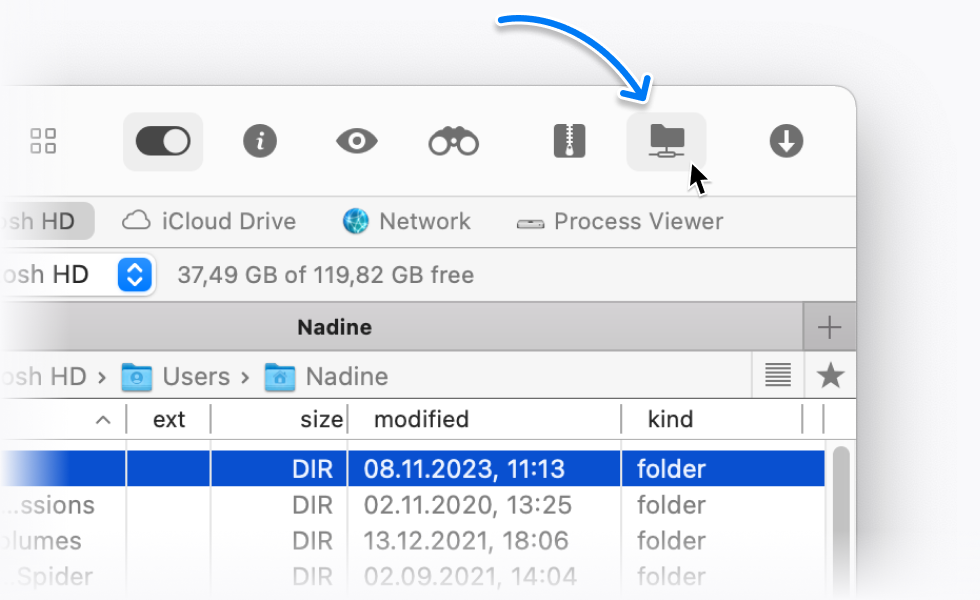
Compress and extract files, view archives like regular folders. You can even edit files inside the archive without unpacking it first. Works with ZIP, RAR, 7Z, TAR, etc.
3
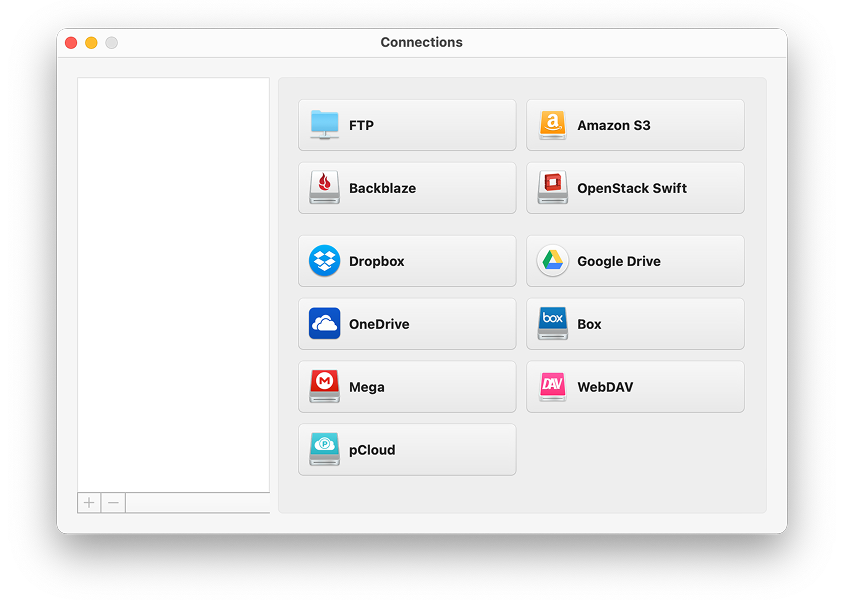
Have a seamless browsing experience with Commander One. Easily preview any kind of file before opening it in the respective applications.
4
Search across local drives, cloud storage services, devices, and even in archives. Use Regular Expressions and make searches case-sensitive for more accurate results.
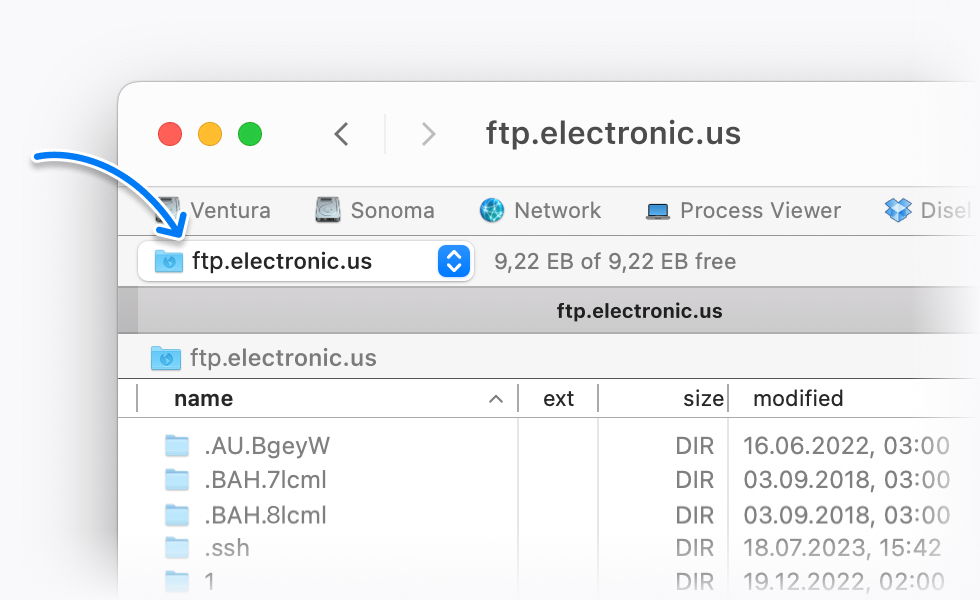
How to connect to popular hosting providers
Step-by-step connection guide for the most common web hosting platforms on Mac.

Bluehost
- Log into cPanel → FTP Accounts
- Copy FTP hostname and credentials
- Commander One → Connections → New → FTP
- Paste hostname and credentials → Connect
Host:
ftp.yourdomain.bluehost.com

SiteGround
- Site Tools → Devs → SSH Keys Manager
- Enable SFTP access, note custom port
- Commander One → Connections → SFTP
- Enter host, user, port 18765 → Connect
Important:
uses non-standard port 18765

GoDaddy
- My Products → Hosting → Manage
- Settings → FTP Users → Find credentials
- Commander One → Connections → FTP
- Enter hostname and credentials → Connect
Host:
ftp.yourdomain.com (shared hosting)

Hostinger
- hPanel → Files → FTP Accounts
- Create FTP account, note hostname
- Commander One → Connections → FTP
- Enter host, username, password → Connect
Host:
files.000webhost.com or ftp.yourdomain

Kinsta
- MyKinsta → Sites → Your Site → Info
- Copy SFTP/SSH hostname, port, username
- Commander One → Connections → SFTP
- Paste credentials → Connect instantly
Kinsta requires SFTP — no plain FTP support

WP Engine
- WP Engine User Portal → Environments
- SFTP tab → copy host and credentials
- Commander One → SFTP → Port 2222
- Enter credentials → Connect
Uses port 2222 — enter manually in connection
FTP, SFTP, FTPS — all hosting protocols supported
Not sure which protocol your hosting uses? Commander One handles all three.
FTP · Port 21
FTP — Standard
Classic File Transfer Protocol. Works with virtually all shared hosting plans. Use when SFTP is not available.
Bluehost
GoDaddy
Hostinger
DreamHost
 A2 Hosting
SFTP · Port 22
SFTP — Encrypted
SSH-based encrypted protocol. Required by managed WordPress hosts. Protects credentials and file content in transit.
 Kinsta
 WP Engine
 SiteGround SSH
 Cloudways
FTPS · Port 21/990
FTPS — FTP over SSL
FTP with SSL/TLS encryption layer. Used by some corporate and enterprise hosting environments.
Corporate hosts
Enterprise FTP
Custom servers
Work with archives directly on your hosting server
Compress, extract, and browse archives on the server — without downloading them to your Mac first.

Compress folders on the server
Select any folder on your hosting, right-click → Compress → ZIP. The archive is created directly on the server — no download needed. Useful for backups and moving large directories.

MTP devices
Connect your cameras to your Mac via MTP transfer mode and seamlessly navigate through photos and videos right from the app’s interface.

Android devices
Browse and manage media files stored on your Android device from your Mac without having to copy or move them back and forth.
MTP devices
Connect your cameras to your Mac via MTP transfer mode and seamlessly navigate through photos and videos right from the app’s interface.
Supported Archives

Extract, create and modify: FREE PLAN: .zip
PRO PLAN: .7z, .txz(.tar.xz), .tlz(.tar.lzma), .tbz(.tar.bz), .tgz(.tar.gz), .tz(.tar.z)
PRO PLAN: .7z, .txz(.tar.xz), .tlz(.tar.lzma), .tbz(.tar.bz), .tgz(.tar.gz), .tz(.tar.z)

Extract and modify: PRO PLAN: .ipa, .apk, .jar, .ear, .war, .zipx, .xpi, .tar, .cab, .bz, .bz2, .taz, .z, .gz, .lzma, .xz, .tb, .tb2, .tbz2(.tar.bz2)

Read-only: PRO PLAN: .rar, .xip, .xar, .iso, .cab