 Commander One
Since creating RAR archives on a Mac is only possible using RARLAB console utilities (“RAR for macOS”), in this review, we will analyze which services can perform the remaining functions for working with other archive formats more conveniently than RAR for Mac via the command line.
If you have recently switched from Windows, you are likely used to the convenience of right-clicking a RAR file and having it extracted instantly. On a Mac, however, the default Archive Utility is powerless when dealing with RAR archives.
The best WinRAR alternative for Mac should help you open, preview, organize, and manage archives as part of your everyday file workflow.
Below, we’ll look at the main reasons to replace WinRAR and explore which Mac WinRAR alternatives are good for everyday use.
Why replace WinRAR on a Mac?
The biggest reason is that WinRAR doesn’t have a native graphical user interface for macOS. While RARLAB does offer a command-line version for Mac, it’s not very convenient for the average user who just wants to unpack a file without consulting documentation, especially if you’re used to a visual app on Windows.
For many Mac users, the issue is not only opening a RAR file. Modern workflows involve moving files between folders, cloud storage, external drives, and remote servers. You might also need to preview archive contents, extract only one file, or compress folders into different formats without constantly switching between Finder and another app.
That’s why a good WinRAR alternative for Mac should do more than just decompress files. It should make the whole archive process faster, cleaner, and easier.
After testing multiple tools, we established a clear set of criteria for Mac WinRAR alternatives:
- Full support for popular archive formats such as ZIP, 7z, TAR, TGZ, and more
- Ability to extract RAR archives
- Fast, error-free extraction
- A clean macOS-friendly interface
- Easy workflow with Finder or a built-in file manager
- Bonus features such as cloud storage, remote server access, file preview, or advanced search.
The top-rated solutions for today
Below are some of the top-rated solutions for users looking for a convenient alternative to WinRAR for macOS.
The Unarchiver
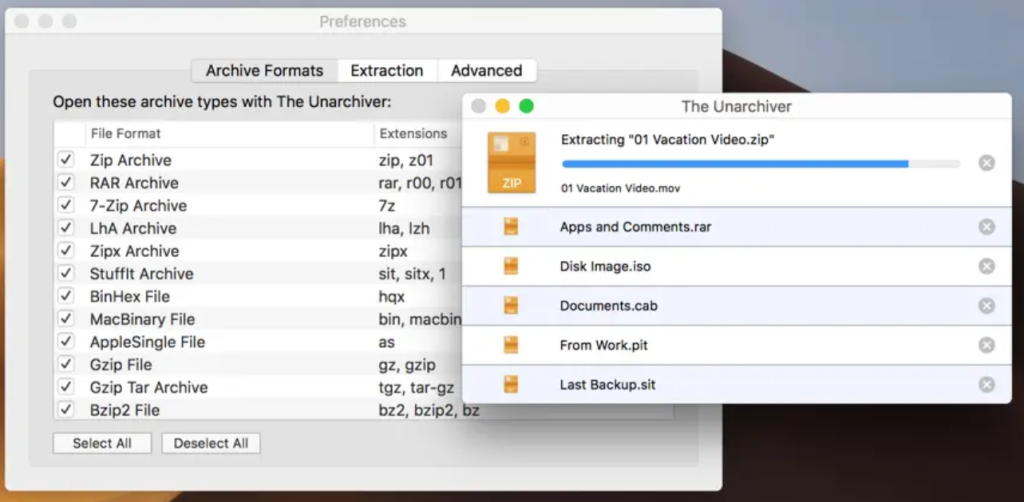
The Unarchiver has been around for years and is usually the first recommendation you’ll hear when someone asks about opening RAR files on macOS. It’s simple, lightweight, and easy to use. Plus, it supports a wide range of formats, including RAR, ZIP, 7z, TAR, and Gzip, with almost no setup required.
For many users, this is the first app they install when they need to open RAR files on a Mac. Once installed, it can take over archive opening from the default macOS Archive Utility. In most cases, you just double-click an archive, and the app extracts it for you.
The Unarchiver is a good option if your main goal is to open and extract archives without learning anything new. It doesn’t try to be a full file manager or a professional compression tool. It simply does the basic job well.
Pros
- Completely free
- Zero configuration needed
- Lightweight and unobtrusive
Cons
- Not designed for creating archives
- No full file management interface
- Limited workflow features
- Doesn’t let you manage archive contents like folders.
App Store Rating: 3.9 out of 5
Our take: The Unarchiver is a good choice for non-technical users who only need to unpack files from time to time. Install it once, set it as your default extractor, and you can mostly forget about it. Just don’t expect anything beyond straightforward decompression.
Keka
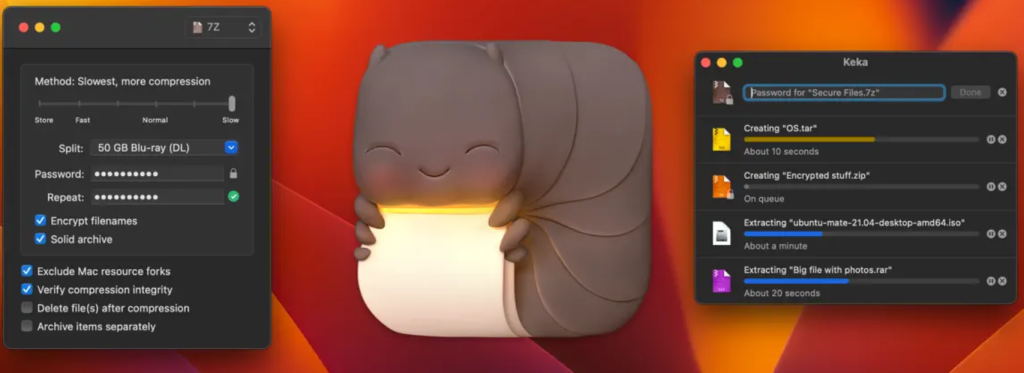
Keka is another popular archive app for Mac users who need both extraction and compression. Compared to The Unarchiver, it feels more flexible and gives you more control over how files are compressed.
With Keka, you can create archives in formats such as ZIP, 7z, TAR, Gzip, and others. For example, you can set the app to delete the original archive after extraction, keeping your folders cleaner.
Keka is a great option if you often compress files before sending or uploading them. It gives you more control than the built-in macOS Archive Utility and is easier to use than command-line tools.
However, it’s still mostly a standalone archive utility. You open the app, drag files into it, choose your settings, and then return to Finder to continue organizing your files. That works fine for simple tasks, but it may feel less smooth if you handle archives all day.
Pros
- Adjustable compression levels
- Splits large archives into smaller parts
Cons
- Can’t create RAR archives
- Slightly less intuitive on first use
- Not a complete file management solution.
App Store Rating: 4.8 out of 5
Our take: Keka is a good choice if you need a simple but capable compression app. It works well for quick tasks and offers more options than the basic macOS tools. Still, if you want to browse, preview, extract, move, and upload archive contents in one place, you’ll need a more advanced archive manager.
Commander One
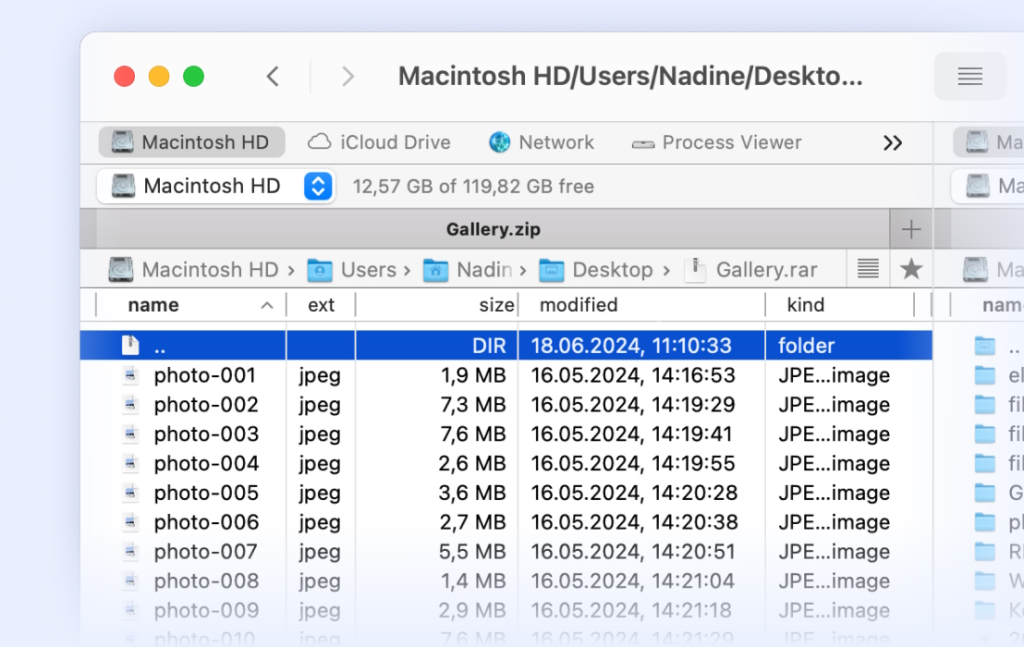
Commander One offers a more complete solution for users who want to manage archives as part of a larger file workflow. It’s a dual-pane file manager for macOS with built-in archive support.
This means you can work with archives almost like regular folders. You can open a RAR file, browse what’s inside, preview files, copy only the items you need, and move them to another folder without extracting the entire archive first.
Commander One is perfect for users who regularly handle archives, cloud storage, remote servers, backups, and local files. It reduces the need to jump between Finder, an archive extractor, a cloud app, and an FTP client.
For example, you can open an archive, extract only selected files, move them to Google Drive or Dropbox, upload them to an FTP server, or organize them on your MacBook from the same interface.
Pros
- Combines file management and archive handling in one app
- Lets you browse archive contents without extracting
- Eliminates the need for several separate apps
- Built-in cloud and remote server integration
- Supports adjustable compression for supported formats
- Useful for large archives and selective extraction
- Offers advanced search and file preview features
Cons
- Some advanced features require the paid Pro version
- Can’t create RAR archives.
App Store Rating: 3.9 out of 5
Our take: Commander One is the closest thing to a full WinRAR replacement on macOS. It doesn’t only mimic WinRAR’s interface, but it also gives you the same workflow efficiency: browse, manage, extract, and move files in one place. The dual-pane view alone makes file operations significantly faster than working in Finder.
Here’s what makes Commander One different from other Mac WinRAR alternatives:
- Two-panel interface
The dual-panel interface feels similar to classic file managers but is adapted for macOS. This layout makes moving files between folders, drives, archives, and cloud accounts simpler and more controlled. - Built-in archive support
Commander One can open many archive formats directly inside the file manager. You can open RAR, ZIP, 7z, and other formats like regular folders, so there’s no need to extract everything first. - Cloud integration
The app gives you direct access to services such as Google Drive, Dropbox, OneDrive, Amazon S3, Box, MEGA, pCloud, and Backblaze B2. You can manage cloud storage in the same app you use to manage local files and archives. - Remote server support
Commander One also supports FTP, FTPS, FTPES, SFTP, and WebDAV. If you work with websites, servers, backups, client folders, or remote file storage, you can upload backups or move archive files to remote servers without using extra apps. - Better workflow efficiency
Commander One helps improve workflow efficiency by letting you browse, preview, extract, compress, upload, download, and organize files in one place. - Advanced search through the archive contents
The advanced search feature helps you browse archive content with flexible filters. This is helpful when you don’t remember the exact filename or when you’re working with a large archive containing many folders. - File preview without extraction
Instead of extracting everything and sorting through a messy folder afterward, Commander One allows you to check the contents first and only extract what you need. This can save a lot of time.
Conclusion
After comparing various tools, we’ve concluded that Keka and The Unarchiver are both useful Mac WinRAR alternatives for simple archive tasks. But Commander One is the most practical and complete WinRAR alternative for Mac if you work with archives regularly and want everything in one place.
It makes unarchiving part of your normal file management workflow, especially when your files are spread across your Mac, cloud accounts, and remote servers. It’s the closest thing you can get to the efficiency of WinRAR on Windows, while gaining a suite of capabilities that Apple’s Finder simply doesn’t offer.
Frequently Asked Questions
Yes, you can manage RAR archives through Terminal on a Mac. However, you have to install RAR and UnRAR command-line utilities first. These can be downloaded from the RARLAB website or installed through a package manager such as Homebrew. Keep in mind that this approach requires familiarity with the command line. If you prefer a visual interface, third-party software is usually much easier.
Commander One can create and extract ZIP, 7z, TBZ, TGZ, and several other archive formats. It also lets you open, extract, and modify formats like IPA, APK, JAR, TAR, and more. Some formats like RAR, XIP, XAR, CAB, and ISO are read-only, though. You can find the full list of supported archive formats on the official Commander One website.
The easiest way is to use a file manager that connects directly to cloud storage. Commander One lets you manage Google Drive, Dropbox, OneDrive, Amazon S3, and others as if they were local drives. You can extract files directly into cloud storage or move archives between your Mac, cloud accounts, and remote servers without constantly downloading and re-uploading through a browser.