SFTP To Go: A Managed SFTP For Efficiency & Compliance

Secure file transfer and storage is mandatory in regulated fields like finance and healthcare, and for teams interacting with business partners who are in compliance with privacy acts. You need encryption, isolated accounts, clear logs, and consistent availability, without diverting effort into running and hardening your own SFTP server. 

SFTP To Go is a streamlined and secure solution to all this.

As a managed service, SFTP To Go offers:

  • Secure transfer protocols: SFTP, FTPS, S3, and HTTPS based web portal for human users and automated workflows.
  • Central control: Users, directory scopes, IP rules, share links, webhooks, and activity logs managed in a single web portal, or through API.
  • Storage backend: Data stored on Amazon’sS3 object storage with encryption at rest and excellent scale and durability for enterprise applications.
  • Client compatibility: Connects directly from Commander One and other SFTP clients using normal connection details.
  • Web portal access: Even when you’re away from your Commander One setup, you can still access and manage files remotely.
  • Fully managed features: It handles the hosting, security, and storage for you. No setup, no patching, no worrying about uptime.


This review focuses on how quickly you can put it into use, how it behaves in day-to-day operations through the web portal as well as using Commander One as a client and file manager, and how reliably it serves compliance-conscious environments.

Getting started: Simple, structured, and transparent

SFTP To Go comes with a range of scalable pricing options, so you pay only for what you need, and every plan offers a 7-day trial period. All plans are feature-packed. We opted for a free trial of their Scale plan.

Organization setup is straightforward. You choose a plan, provision SFTP To Go. To access your account through the Web Portal, you just sign in and voila! No operating system setup necessary, no complicated manual config. 

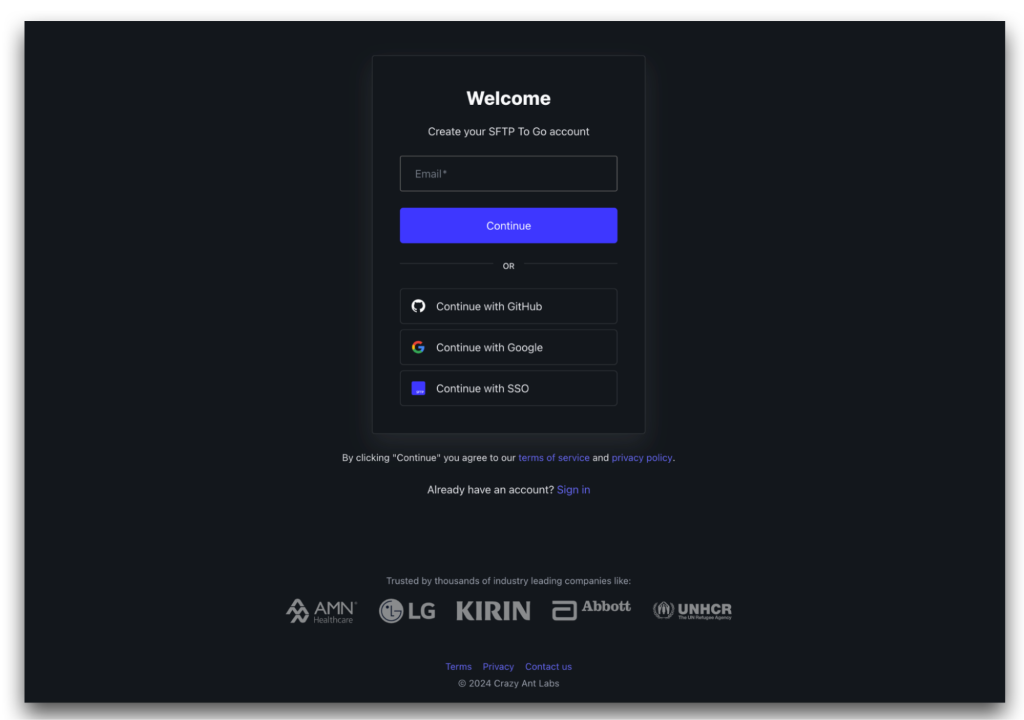
Create your SFTP To Go account

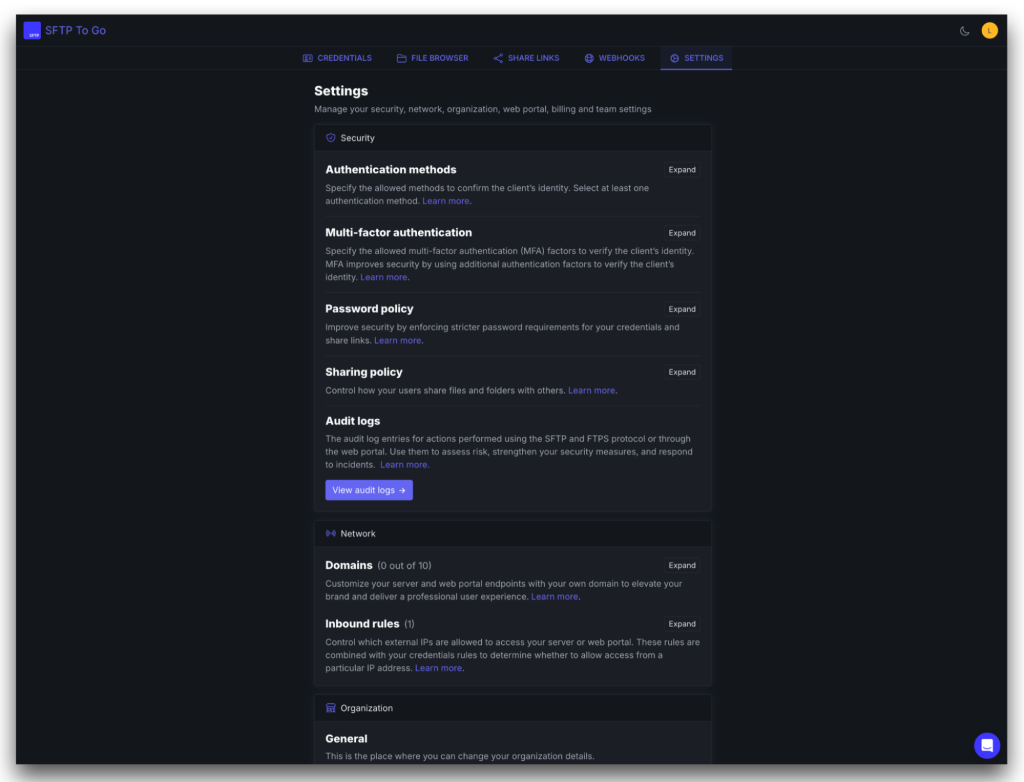
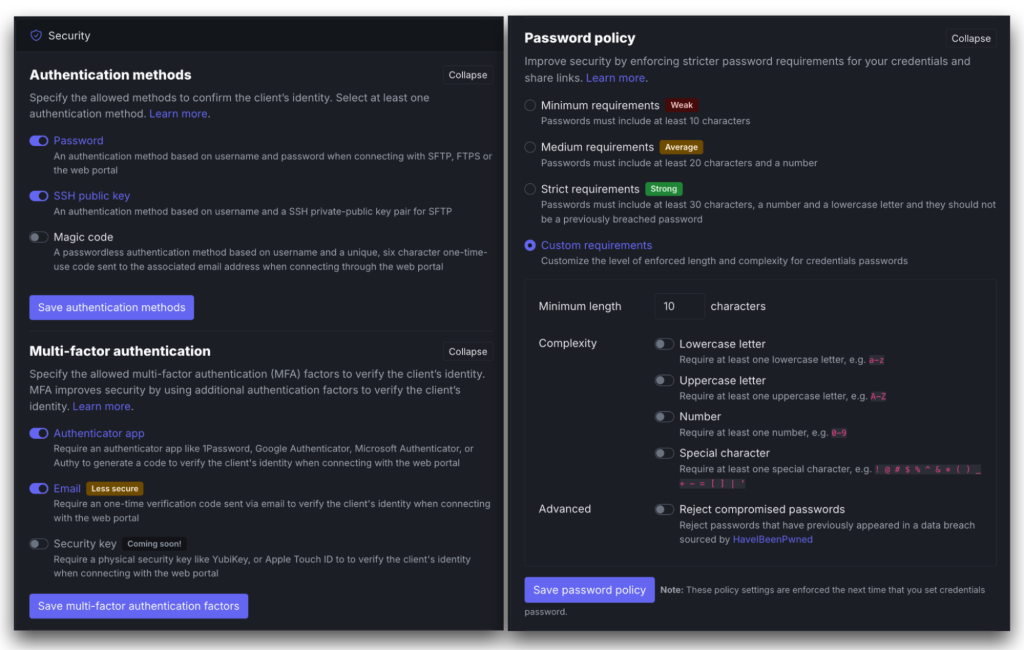
It’s built to be secure out of the box, but when you need even tighter controls, you can enable inbound network rules, key-based authentication, and other restrictions directly under Admin Dashboard>Settings>Security.

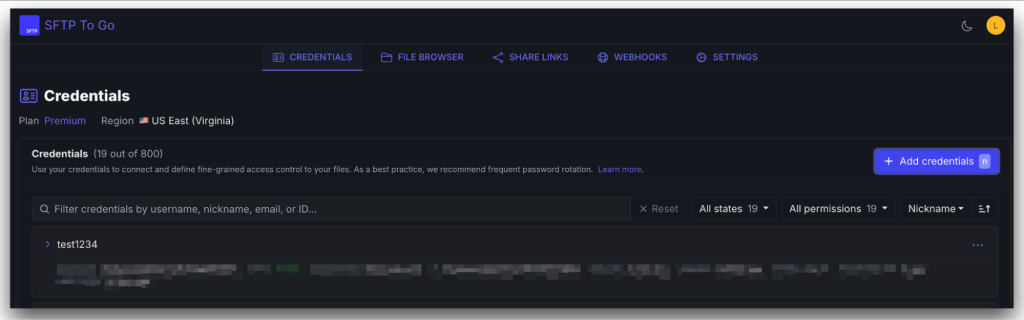
The Admin interface, accessible through the web portal, is simple, with five main tabs:

  • Credentials: Create named users and system accounts with:
  • Defined home directories.
  • Read, write, or upload-only permissions.
  • Segregation for partners, teams, or applications without separate servers.
Create named users and system accounts
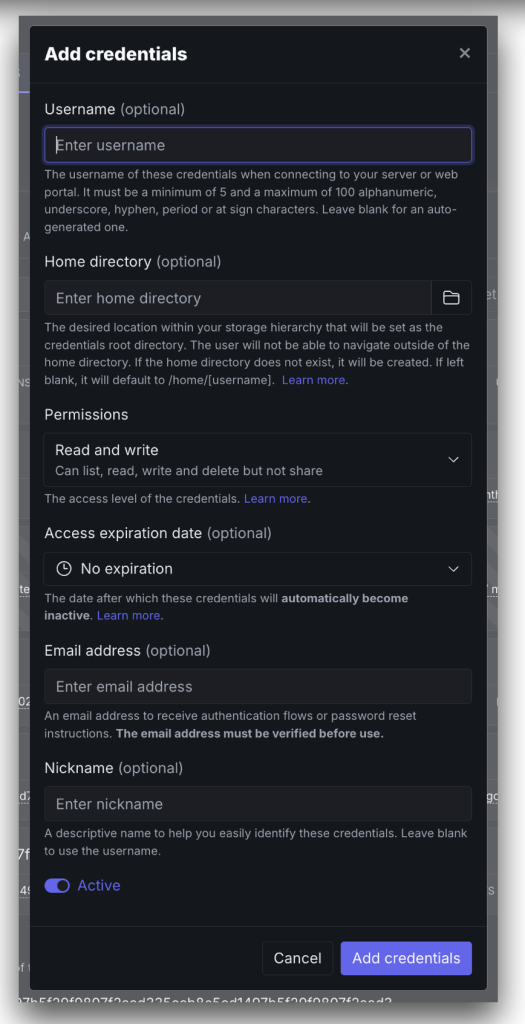
Add credentials
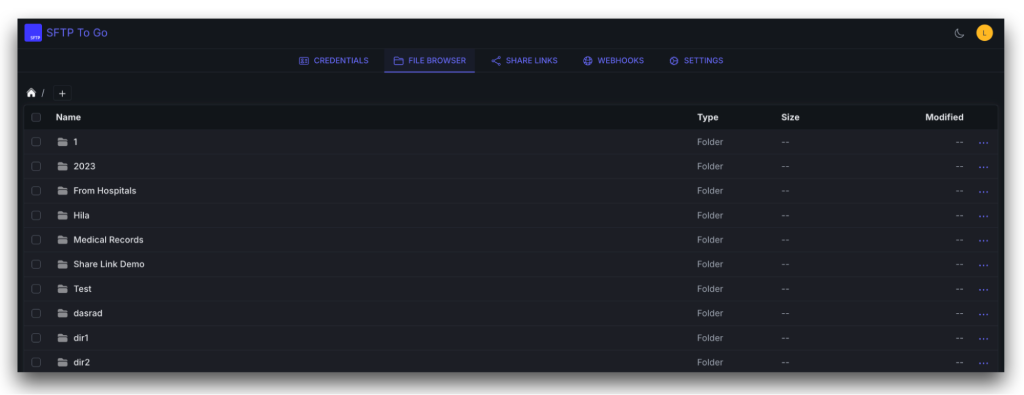
  • File browser: Offers a range of file management features:
  • Permission-aware directory view.
  • Upload, download, rename, move, delete.
  • Folder creation and restructuring.
  • Server side file copy and move..
File browser
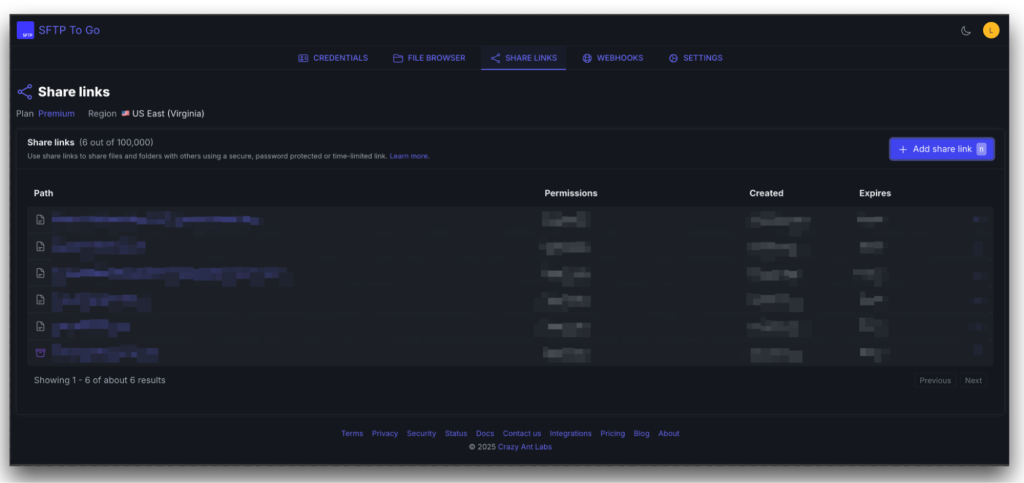
  • Share links: Access links for external users, similar to GoogleDocs share links. Admins can:
  • Generate links for specific files or folders.
  • Can be generated and managed by all users and via the web portal, with full oversight for admin users.
  • Configure validity and expiry options and revoke at will.
  • Avoid issuing long-lived credentials for one-off access.
Share links
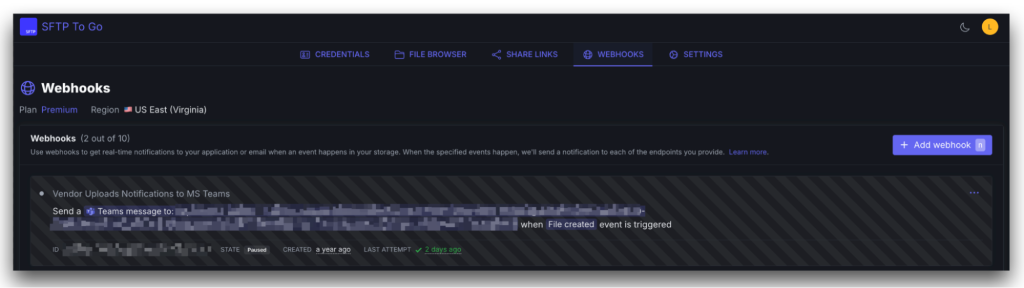
  • Webhooks: Customizable real-time file activity notifications. You can:
  • Trigger events/notifications on upload, delete, move, and similar actions.
  • Target your HTTP endpoints or intermediaries.
  • Provide a native integration surface for automation and monitoring.
  • Set real-time notifications via Slack, Teams or email.
Webhooks
  • Settings: This is where you manage security configurations and plenty more. You can: 
  • Manage security policies and view audit logs.
  • Set custom domains and branding for the web portal.
  • View usage and cost behavior.
  • Manage the admin team and enable SSO.
Settings

Everything you need to operate the service is exposed in the admin dashboard. There are no hidden mechanisms, except for non-Admin users, of course. For tighter integration with your systems, the service offers full API support, and you can access the API documentation Here

In the following sections, we’ll cover the steps to connect and use the service, both locally via Commander One, and online via the Web Portal.

Connecting: no frills or time-wasting

SFTP To Go supports all kinds of connection methods, and setting them up is straightforward.

SFTP

Simply:

1

Open the Credentials tab.

2

Copy the host, username, and password (or use SSH keys) for your chosen user profile.

3

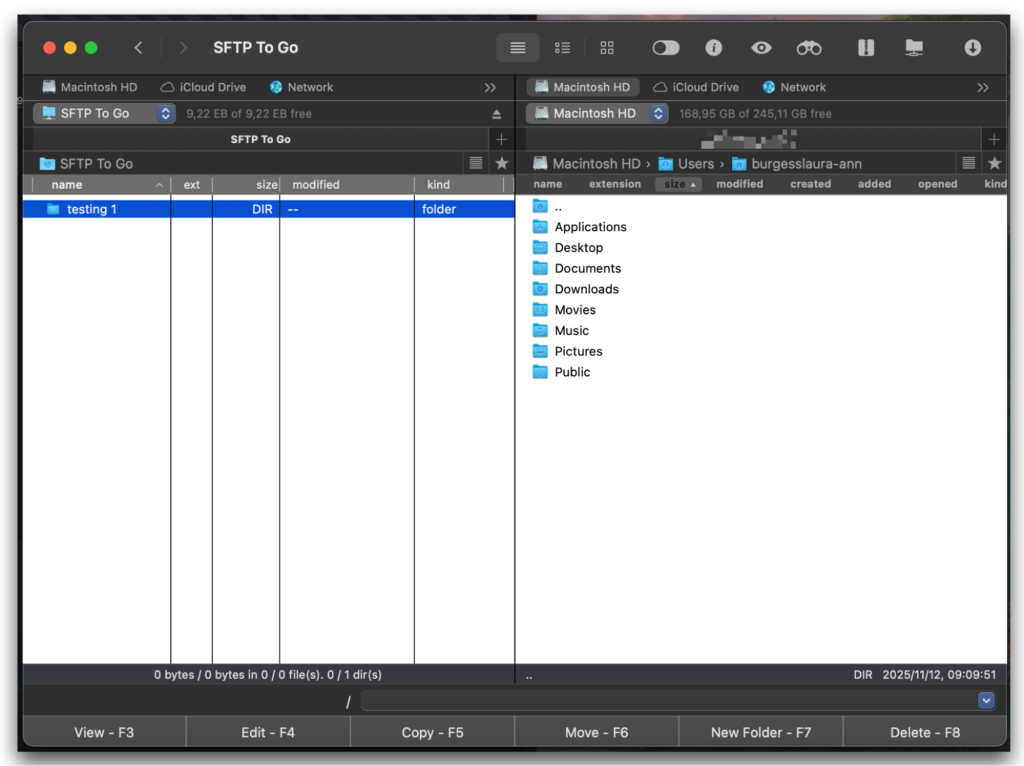
Paste them into your SFTP client. We use Commander One, which lets you connect and manage those files in dual panes, as if they were on a local drive.

4

Connect via Commander One.
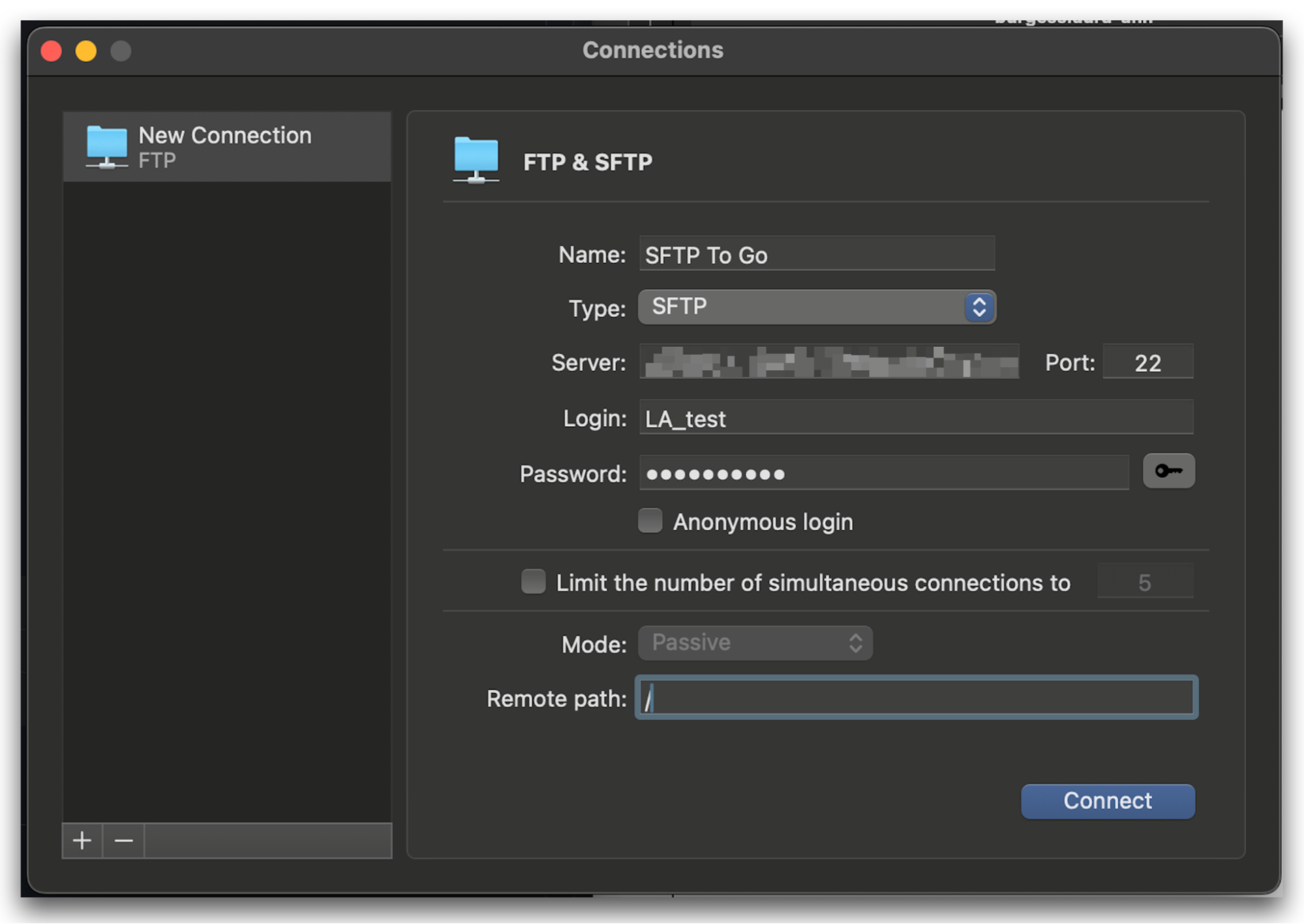
Connect via Commander One.

Instantly, we were able to connect. We created a test folder in our SFTP To Go user home directory via the web portal when we signed in for the first time, which instantly appears now in the left side of our dual-pane Commander One interface.

Connect

FTPS: if your team needs it

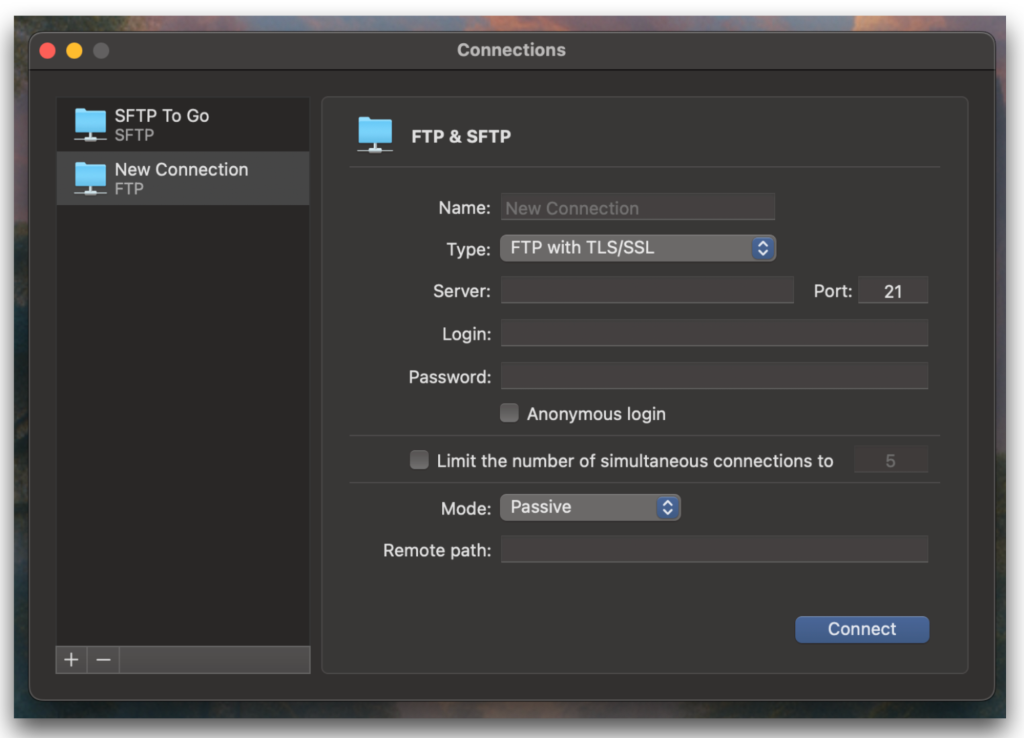
If you or your partners need to connect via FTPS, SFTP To Go handles that cleanly. It supports explicit FTPS with passive mode. You take the host, username, and password from the Credentials section, connect on port 21 from your FTPS client, and work against the same environment you use for SFTP. No special configuration. In Commander One, we simply choose FTP with TLS/SSL as the connection type, which sets the port to 21 by default, then fill in our credentials from SFTP To Go.

Connect with FTP

To learn more, read this.

Amazon S3: direct storage access

SFTP To Go includes managed cloud storage, using highly secure Amazon S3, with a fixed allocation that scales by plan. The same files are available and fully manageable no matter what transfer protocol you employ. Data is encrypted in transit and at rest, and every user works within defined home directories and permissions. 

Whether you are running scheduled transfers, integrating with internal systems, or handling routine uploads, storage is predictable, centralized, and managed from one place instead of scattered across ad hoc servers.

Using the web portal when Commander One isn’t installed

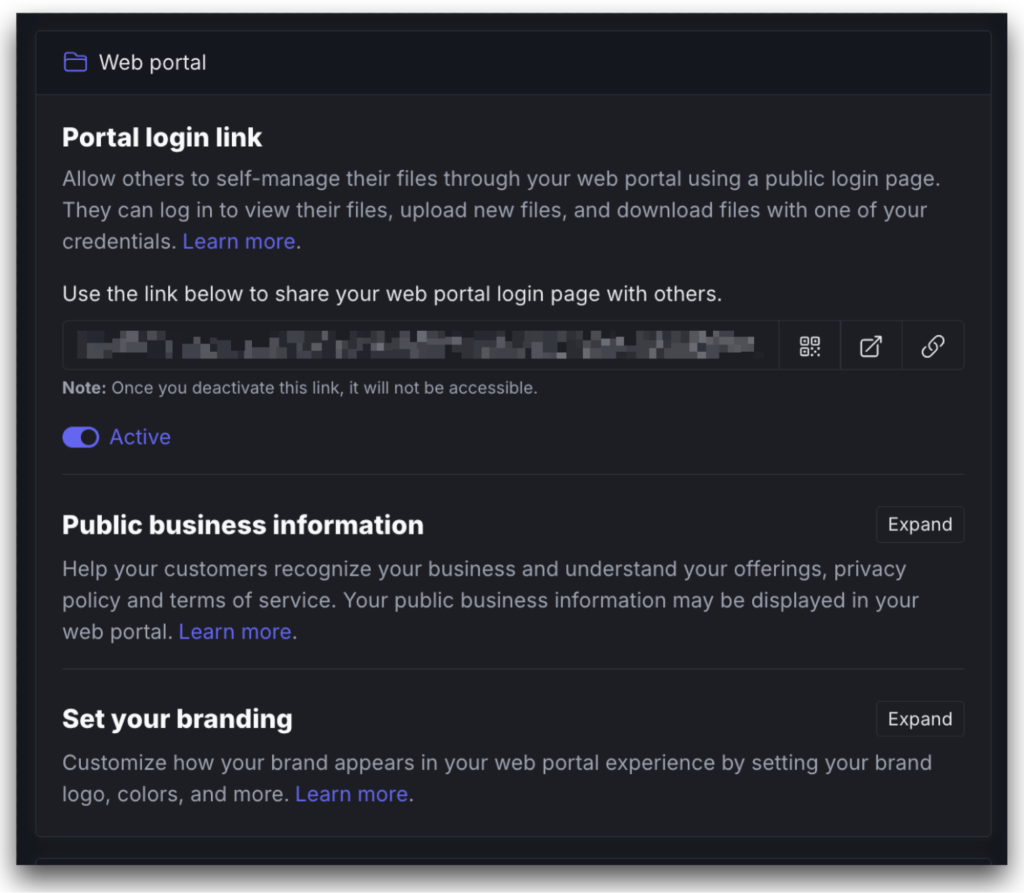
If you’re away from your work or home setup, you can manage files in SFTP To Go directly in a browser over HTTPS using the Web Portal.

  • Secure sign-in: Visit https://sftptogo.com/ and sign in with your username and password, or email-based sign-in, with multi-factor authentication if enabled.
  • Direct file access: Browse, upload, and download without an SFTP client when you’re on another device and don’t have Commander One.
  • Folder management: Create, rename, move, and delete folders within your home directory.
  • Bulk actions: Select multiple items to copy, move, or delete in one go.
  • File preview and sharing: View supported file types in the browser and generate share links for external access.


It’s a practical fallback when you need to fetch or organize files without Commander One. Open Settings and confirm the web portal is enabled.

Web portal

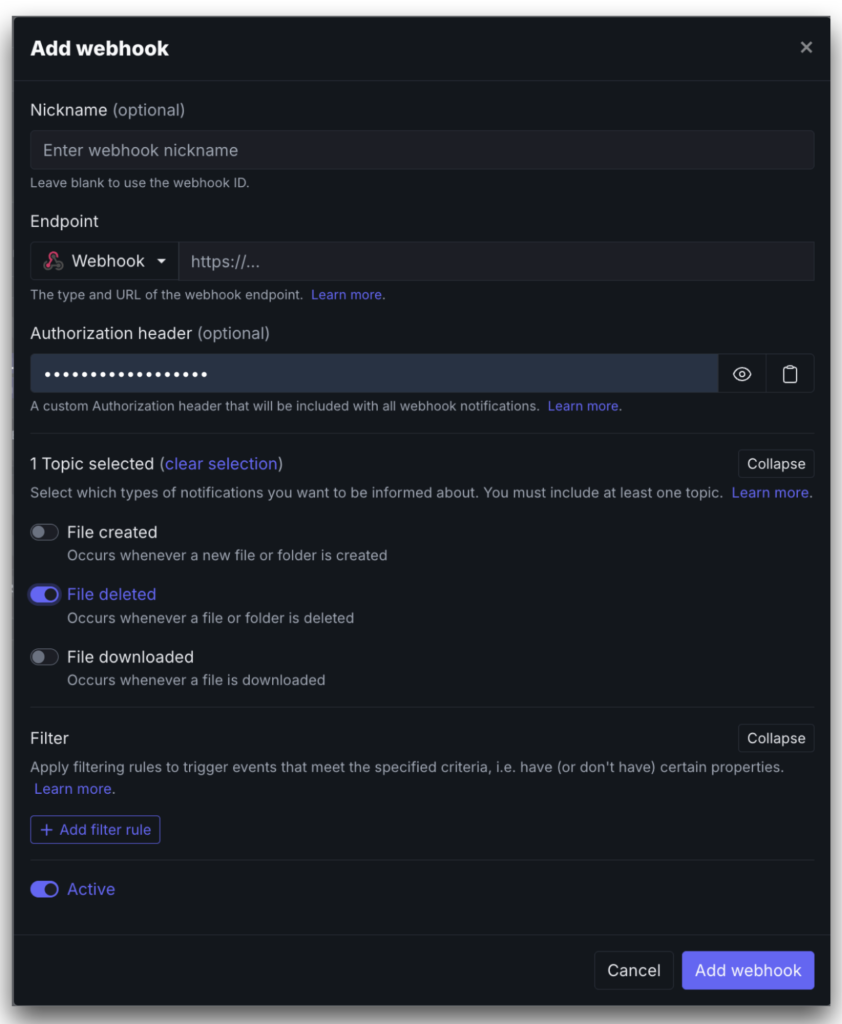
Webhooks: real time file events notifications

Get immediate alerts when files are added, changed, downloaded, or removed. No polling for updates.

Setup is easy:

  1. Open the Webhooks tab.
  2. Click Add webhook and choose to send an HTTP callback or a notification.
  3. Select the events to monitor, such as uploads or downloads.
  4. Enter the destination, for example an HTTPS URL, email, Slack, or Microsoft Teams.


This customizable feature lets you trigger ETL on file arrival, keep downstream systems in sync, and start workflow jobs the moment events occur.

Add webhooks

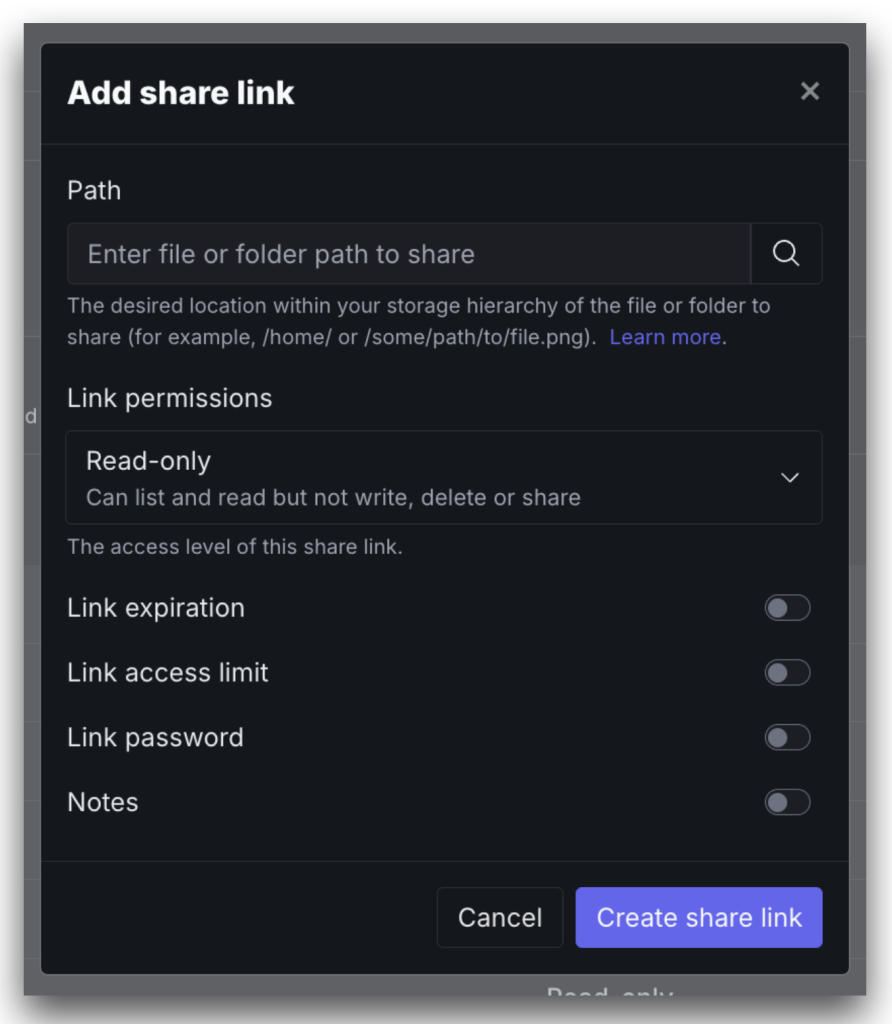
Share links: create permanent or time-limited downloads

Generate secure links for single files. No account required to access them.

  1. Open the Share links tab.
  2. Select the file and generate a link.
  3. Set an expiration option: none, minutes, hours, or days.
  4. Copy the link and send it to the recipient.


This is useful when someone outside your organization needs a file and doesn’t have an SFTP client like Commander One.

Add share link

Hardened security & compliance controls

SFTP To Go handles encryption, access control, and auditability at the platform level. You configure users and sign-in once, then policies are enforced on every transfer and request.

  • AES-256 Encryption at rest
  • TLS For FTPS and HTTPS (S3 and web portal)
  • SSH For SFTP sessions
  • Granular Permissions for read/write or read-only
  • SSH Key Authentication recommended over passwords
  • SAML SSO availability with Okta, Entra ID, Google Workspace, and others, with optional JIT provisioning.
  • Audit Logs for user and file activity
  • HIPAA, SOC 2, DORA, and GDPR support
Security

Key features for us

These features work together to make SFTP To Go a recommended solution for any teams handling sensitive workflows.

  • Real-time events and notifications: Receive webhooks and configurable alerts for uploads, edits, downloads, and deletes to trigger ETL, syncs, and workflows.
  • Share links for external access: Create permanent or expiring download links without provisioning user accounts.
  • Multi-protocol access: Connect over SFTP, FTPS, HTTPS, or S3 APIs to support legacy jobs and modern pipelines.
  • Managed S3 storage: Use built-in Amazon S3 with encryption and durability, from small footprints to effectively unlimited capacity.
  • Security and compliance controls: AES-256 at rest, TLS and SSH in transit, granular permissions, SSH keys, audit logs, and IP allow lists. A product built to support compliance with regulatory frameworks like HIPAA, SOC 2, GDPR, and DORA.
  • Admin authentication upgrades: MFA required for Admin users, with SAML SSO available for enterprises using Okta, Entra ID, or Google Workspace.
  • Fully operated service: High availability, automated maintenance, and responsive support remove patching and server upkeep.

So, who should use SFTP To Go?

This is a managed, low-overhead choice for teams that want a dependable and highly secure cloud SFTP service without running servers.

Perfect for:

  • Finance, healthcare, and insurance all teams handling regulated data 
  • SaaS and data platforms exchanging files with customers and vendors
  • Teams who need to interact with legacy systems and/or enterprise business partners and prefer dealing with files rather than APIs
  • Logistics and manufacturing operations moving batch files and reports
  • Legal and professional services sharing sensitive documents
  • Data and analytics teams running scheduled ETL and ingestion
  • IT and security teams needing scoped users, IP allow lists, and audit trails

Conclusion

Setup is quick, the interface is intuitive and easy to use, even for non-technical users, and connections via Commander One are immediate. Protocol coverage (SFTP, FTPS, HTTPS, S3), webhooks, and share links support both legacy jobs and modern pipelines. 

Security and compliance controls are built in, with MFA for Admins and optional SAML SSO on enterprise plans. We found SFTP To Go to be a reliable, low-maintenance managed SFTP that prioritizes control, evidence, and uptime.