FTP Client for Minecraft Server on macOS

Managing a dedicated Minecraft server from a Mac sounds simple until you’re stuck waiting on a stalled web upload or hunting for a dropped config file. An FTP or SFTP client solves this by giving you stable, direct access to your remote game server from your desktop.

This guide explains why an FTP client is the better tool for the job, compares the top options available on macOS today, and shows how to connect to your FTP server Minecraft setup with Commander One.

Why is an FTP client preferable for Minecraft servers?

Most Minecraft hosting providers, including Apex and G-Portal, have a web-based file manager in their control panels. It is useful for quick edits, small uploads, or checking a config file without installing third-party software. However, it tends to fall apart when you’re doing anything at scale.

The thing is, Minecraft servers usually contain a lot of data. A single server may include world folders, maps, plugins, mods, logs, configs, backups, resource packs, and custom JAR files. If you use modpacks, the number of files can grow very quickly.

Uploading or downloading all of that through a browser-based panel can be slow and frustrating. It can time out when you upload a heavy modpack, download a full world backup, or move a large folder containing many small files.

That’s why we recommend using a dedicated FTP client for Minecraft. It offers the following advantages:

  1. Stability: FTP clients are designed to maintain persistent connections and are more stable for large transfers. It can manage multiple file transfers in order and move entire folders more reliably than a browser-based file manager.
  2. Bulk file handling: A Minecraft server usually contains hundreds or even thousands of tiny files, especially if you’re using plugins, mods, and custom worlds. FTP clients are built to queue and process these far faster than a web interface. Instead of uploading files one by one, you can drag a whole folder from your MacBook to the server and let the app process it.
  3. Local drive experience: The best FTP clients let you navigate your remote gaming server like it’s part of your Mac’s own storage. You can open server folders, compare files, rename items, move plugins, remove old mod versions, and organize configs without switching between your browser and Finder. Server management feels native and much more intuitive this way.
  4. Simplified manual backups: Before updating plugins, changing server software, or adding a new modpack, you can drag the entire world folder to your desktop. This gives you a restore point that’s separate from your host’s automatic backups. If something breaks, you’ll still have a copy saved locally.

Which FTP client is better for remote gaming servers on Mac?

Users feel that FTP clients for dedicated game servers on Mac should work smoothly with macOS and not make basic file management harder than it needs to be.

For Minecraft, the best server tool depends on what matters most to you: a free tool, a clean interface, secure password storage, or a dual-pane layout.

FileZilla

FileZilla is one of the most popular FTP clients. It’s free, and works on Windows, macOS, and Linux. It supports FTP, FTPS, and SFTP Minecraft connections, so it can connect to most game hosting services. It also has queue management, transfer speed limits, and a familiar layout for users who have worked with remote servers before.

Since it has been around for years, many Minecraft hosting tutorials still use FileZilla as the default example. However, it now feels dated on macOS. Newer users find the layout cluttered, especially when they only want to upload plugins or download a world folder.

The interface doesn’t follow macOS design conventions and doesn’t integrate with the system Keychain, meaning your server credentials are stored in plain text on your machine by default. That’s a meaningful risk for anyone managing an FTP server for Minecraft, especially when real player data is involved.

Commander One

Commander One is a dual-pane file manager built specifically for macOS. The two-panel layout makes it easy to work between your local Mac and your remote gaming server. You can keep your Mac files open in one panel and your Minecraft server files open in the other, then drag files between them.

It also supports FTP, FTPS/FTPES, SFTP, and WebDAV, so you have several ways to connect to remote servers. For better security, SFTP is usually the best option when your hosting provider supports it, as it transfers data over a secure SSH channel rather than plain FTP.

Commander One also offers Keychain integration for safer credential storage and client-side encryption for an extra layer of protection during file transfers.

The app also fits better into a macOS workflow. It feels more native than many generic server tools and gives users a more familiar way to access, open, manage, and move files. It also offers helpful extras such as archive support, cloud storage management, file search, a built-in Terminal emulator, and encryption for online connections.

The basic version is free, but some advanced features are part of the Pro version. The investment is worth it if you spend regular time managing a dedicated game server from your Mac.

Cyberduck

Cyberduck is another popular FTP client for Mac. It is open-source, free to use, and has a clean interface that feels more natural on macOS than many older FTP tools. It supports FTP, SFTP, WebDAV, and cloud services like Google Drive and Dropbox.

Minecraft users can connect to their server, upload mods, download world saves, and manage basic files without dealing with a heavy interface.

The main limitation is that it’s single-pane only. This makes it less convenient when you’re managing complex server directory structures or moving files between multiple locations. It’s fine for occasional use, but be prepared for a slightly more manual workflow.

The choice comes down to how often you manage your server and how smooth you want the process to feel. For occasional access, Cyberduck or FileZilla can work well enough. But if you’re regularly updating modpacks, managing plugins, and backing up worlds, Commander One is a better fit for long-term use.

How to connect to the Minecraft server via FTP with Commander One


You can use Commander One to connect to your Minecraft server and manage plugins, worlds, configs, custom JAR files, and modpacks directly from macOS.

Here’s how to do it:

1

Download and install Commander One on your Mac.

2

Launch the app and open the Connections Manager using any of these methods:

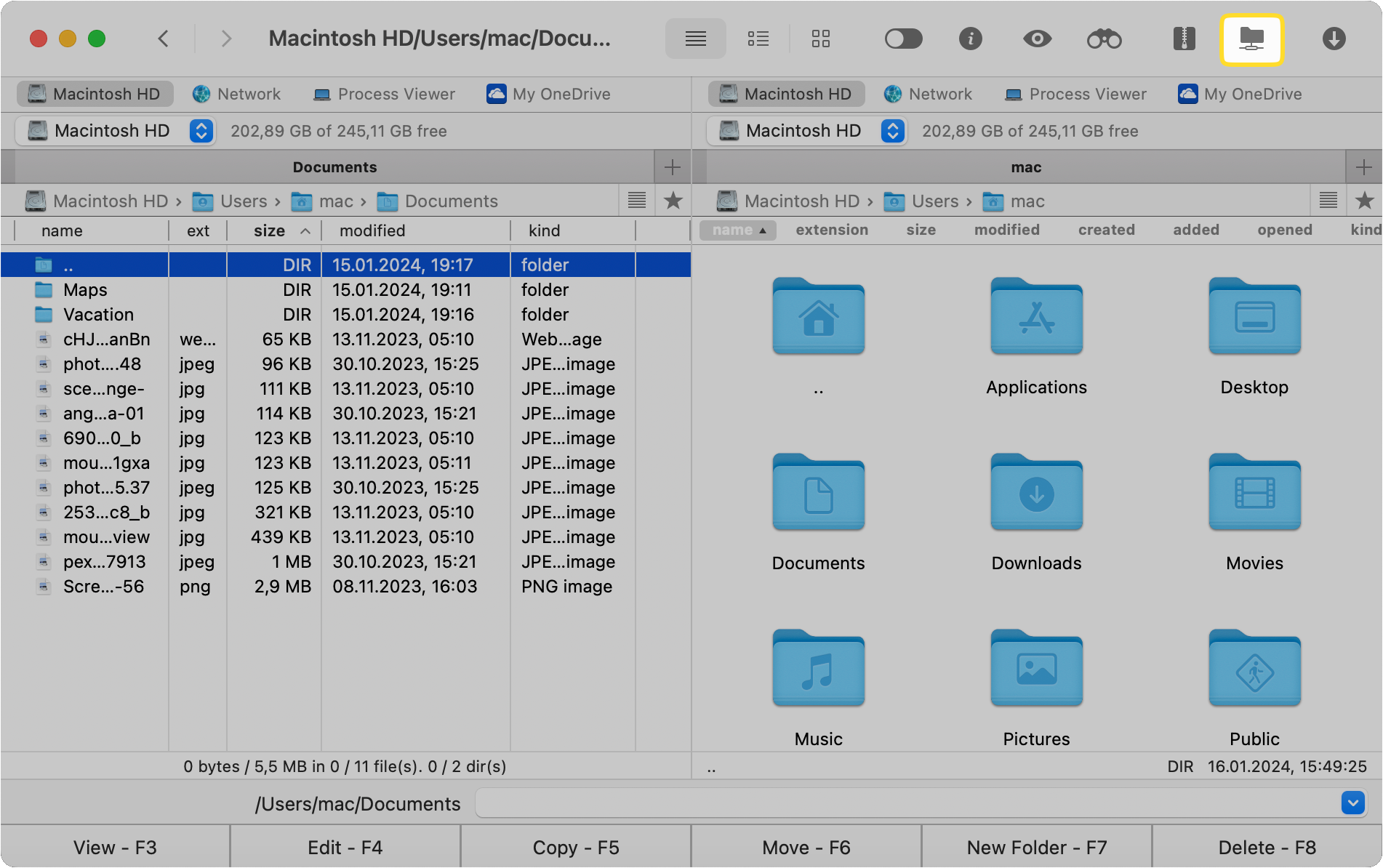
  • Click on the Connections Manager icon in the toolbar
  • Go to “Window” > “Connections Manager”
  • Use the ⌘F keyboard shortcut
Connections Manager in the toolbar of Commander One
3

Select the “FTP & SFTP” icon in the Connections window.
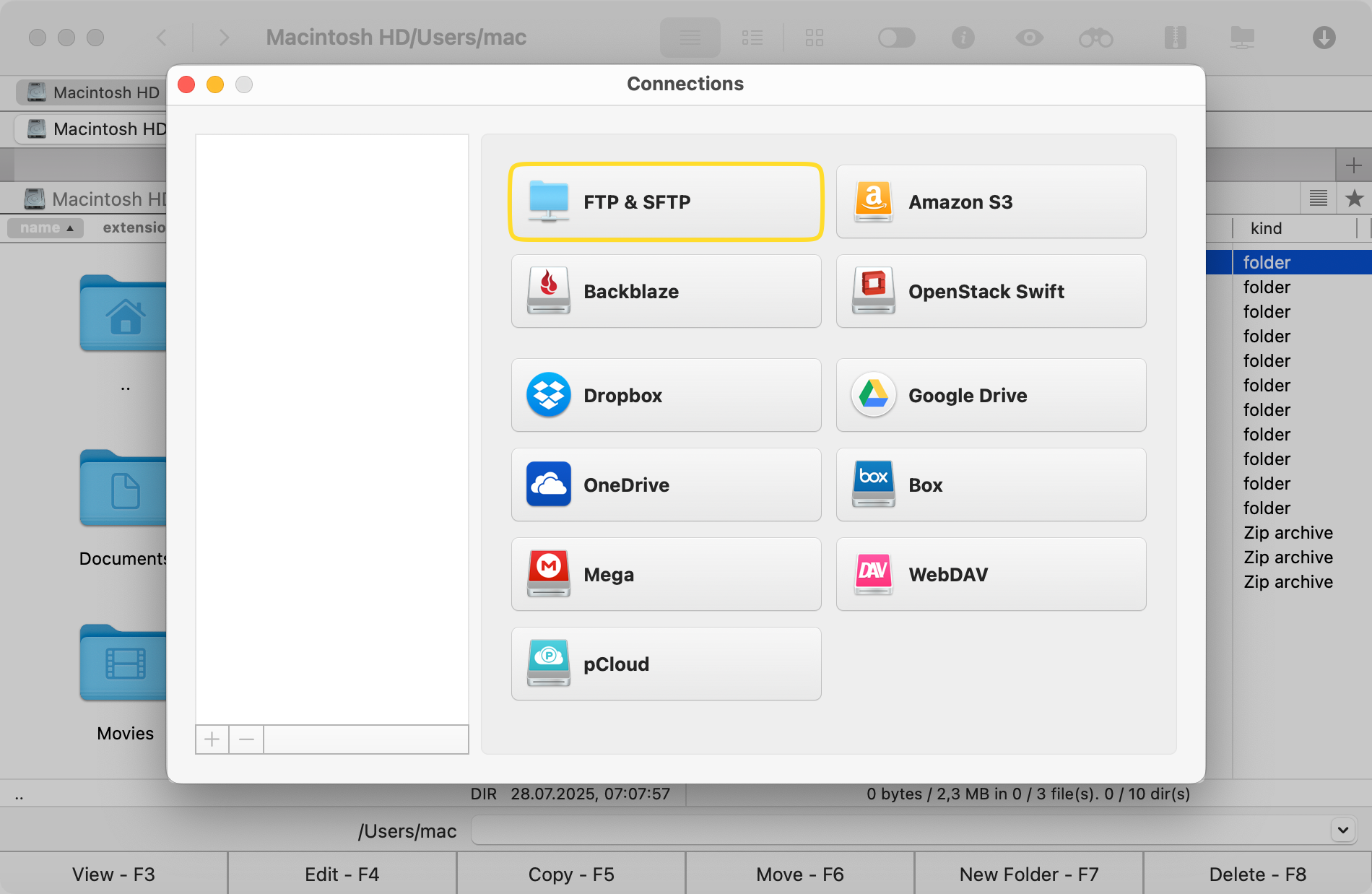
FTP & SFTP in the Connections list of Commander One
4

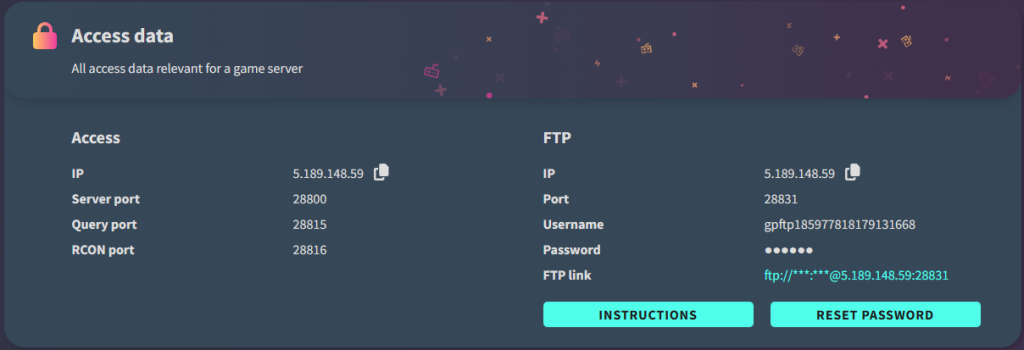
Find your FTP or SFTP login details in your Minecraft hosting panel. The exact location depends on your host. For example, on G-Portal, you can find the details by going to the left menu and navigating to My Servers > Status > Access Data.
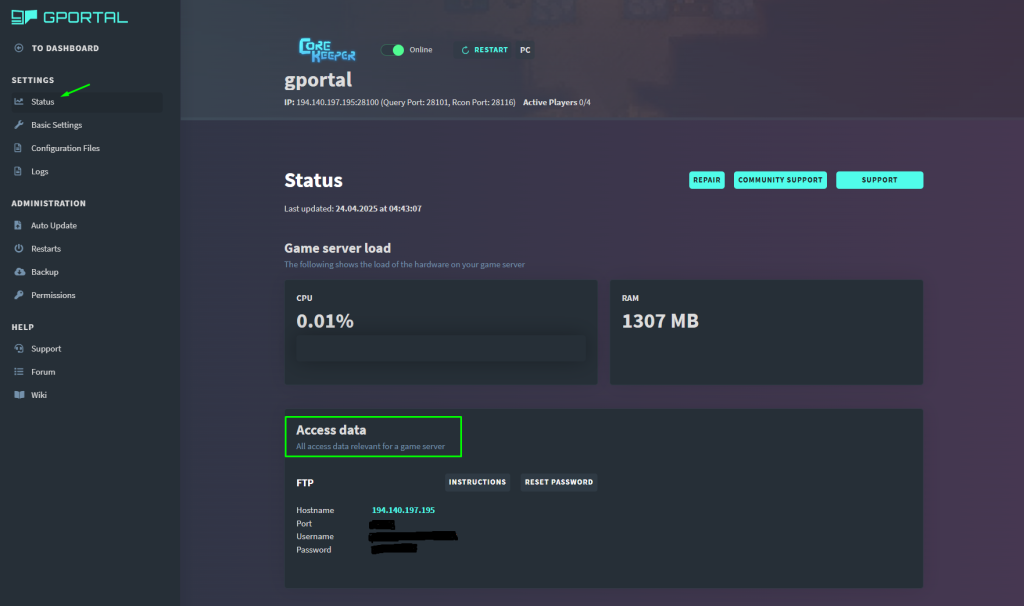
The FTP login details in hosting panel
The FTP data of game server on hosting panel

5

Enter the connection name, server address, port, username, and password in Commander One. If your hosting provider gives you SFTP access, choose SFTP for better security.
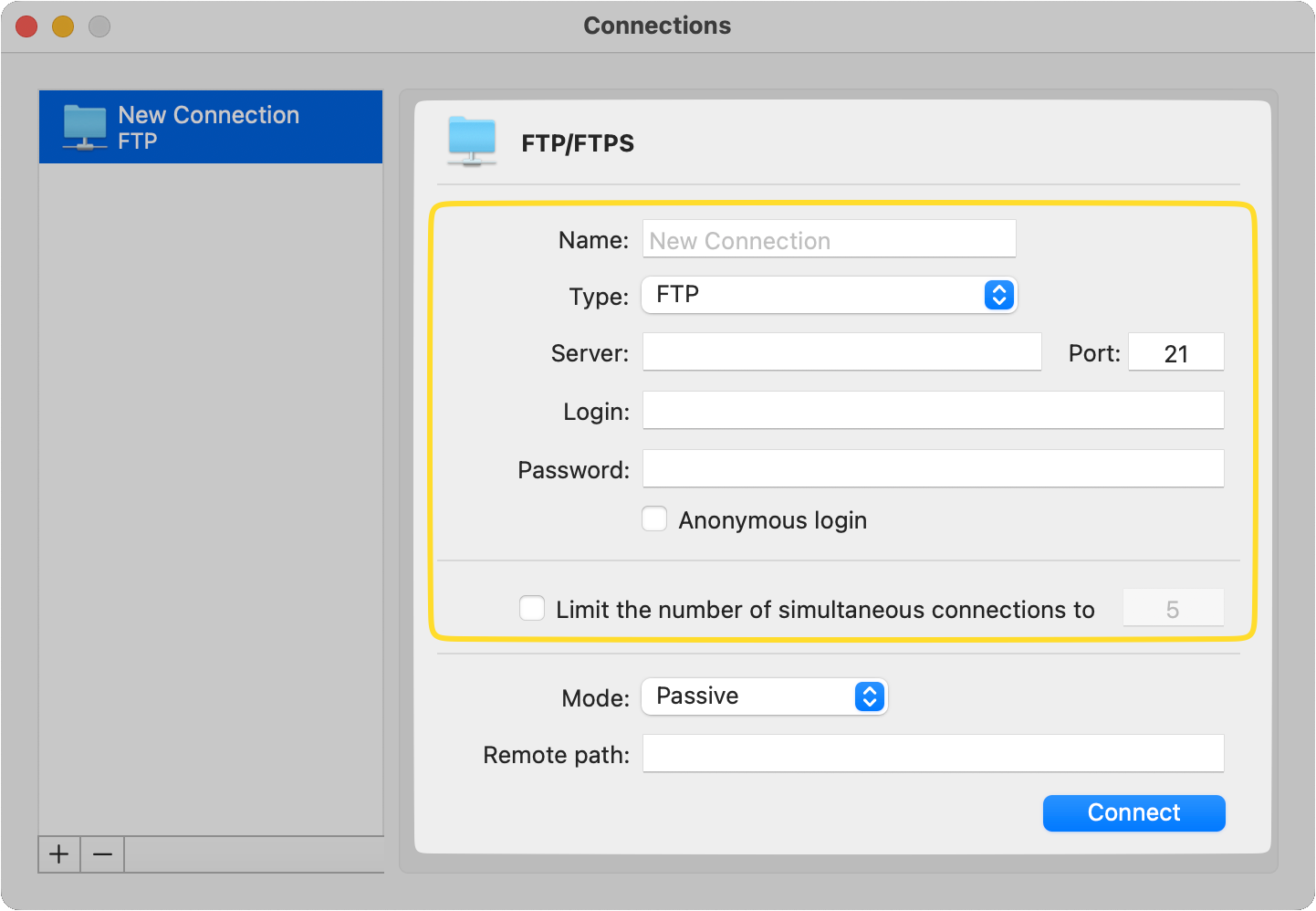
The FTP connection in Commander One
6

Click the “Connect” button.

Once the connection is established, your Minecraft server files will appear inside Commander One. You can work with them as if they were local files on your Mac.

You can open the world folder and download it to your Mac before making major changes. You can upload custom maps, add plugin files, update JAR files, replace server software, or remove old mods that are causing conflicts. You can also edit config files, organize folders, and manage permissions on your SFTP server without leaving the app.

Installing modpacks is also super convenient, thanks to the dual-pane interface. You can prepare the files locally, check the folder structure, and then upload everything to the correct server directory. If you’re updating plugins, you can keep your downloaded plugin files in one panel and the live server folder in the other.

Commander One also supports archives to help save space and make backups easier to manage. For example, you can download a world folder, compress it, and keep it as a manual backup before making changes.

The app’s cloud storage support can also be useful if you want to keep copies of worlds, maps, or personal server files in Google Drive, Dropbox, OneDrive, or another connected service.

Conclusion

A dedicated FTP client gives you more control over your Minecraft server files than a browser-based panel. It helps you move large folders, organize plugins, upload custom JAR files, and save world backups with fewer interruptions.

FileZilla and Cyberduck work well for occasional transfers, but Commander One is better for users who regularly manage dedicated game servers. It brings FTP, SFTP, local files, archives, and cloud storage into one app, so you can work without constantly switching tools.

A basic free setup is fine when you’re just getting started, but as your server grows, a tool like Commander One becomes less of a luxury and more of a practical necessity.

Frequently Asked Questions

Yes, SFTP support is a feature of your hosting environment, not the game itself, so it works with any Minecraft server that’s hosted on an SFTP-compatible server. You can connect using any macOS-compatible SFTP client, including Commander One, to securely manage mods, plugins, and world saves.

Yes, Commander One supports FTP, FTPS, FTPES, SFTP, and WebDAV protocols, as well as a range of cloud storage services. If your gaming server (Minecraft or otherwise) is accessible via any of those protocols, Commander One can connect to it. It’s a general-purpose tool, not limited to any specific game or hosting platform.