For years, macOS users relied on browsers to open FTP links and check files on a remote server. You could type an address like ftp://yourserver.com, browse the contents, and download files without installing anything else. Unfortunately, this method no longer works because Chrome, Firefox, Edge, and Safari have removed FTP support.
If you’re wondering how to connect to FTP via browser, then you know how easy it is to run into outdated instructions that no longer apply to current browser versions. This guide explains why FTP support has been removed and why Mac users are better off using a dedicated FTP client like Commander One for managing remote files.
3 key reasons browsers dropped FTP support
Opening FTP through browser used to be helpful for small tasks. If you only wanted to download a file or look inside a server folder, there was no need to install another app.
But over time, this option became less practical, and since 2021, all major web browsers have officially discontinued their built-in FTP support. So, anyone trying to access FTP server from browser today will usually run into an error.
There are three main reasons for this change:
- Security risks: Standard FTP doesn’t encrypt your connection. This means usernames, passwords, and transferred files can be exposed during transfer. Today, safer options like FTPS and SFTP are preferred because they encrypt data. Browsers were not built to support these secure file transfer methods properly.
- Limited functionality: Browsers only offered very basic FTP access. In most cases, you could view folders and download files, but you couldn’t upload, rename, delete, or edit anything on the server. So, even when FTP browser access worked, it was never a full file management solution.
- Low usage: Browser-based FTP was used by very few people. Since most users had already moved to dedicated FTP clients or other file management tools, browser developers chose to remove FTP support and focus on more modern, widely used web features.
Why a dedicated FTP client is the reliable solution
If you regularly connect to remote servers for a website, work files, backups, or shared folders, switching from a browser to a dedicated FTP client is a major upgrade.
Here’s why you should use a specialized FTP app on your Mac:
- Reliability and speed: FTP clients are made for data transfers. They can manage large folders containing thousands of files at once without timing out or crashing. This makes them more dependable for regular server work.
- Secure connections: Most modern FTP clients support safer protocols such as SFTP, FTPS, or FTPES. These options encrypt the connection to protect your login details and data while they move between your MacBook and the server.
- Full control: With an FTP client, you can do more than download files. You can upload new files, move folders, rename items, delete old files, and even edit code or documents directly on the server.
To connect to an FTP server using a dedicated client on macOS, you need to:
- Pick an FTP client: For Mac users, Commander One is a good choice because it works as both an FTP client and a file manager. For Windows, you can try CloudMounter, which mounts an FTP server as a local folder, or the long-established cross-platform option FileZilla.
- Get your FTP credentials: You’ll need the server hostname (e.g., ftp.example.com), the port number, username, and password. Your hosting provider usually supplies these when you set up your account.
- Connect and start managing files: After signing in, you can open server folders, upload files, download items, and move data between your computer and the server using drag-and-drop.
8 reasons Commander One excels as an FTP client for Mac
Commander One is a great choice for macOS users looking for a professional but easy-to-use FTP browser alternative. It goes well beyond basic FTP access and works as a complete file manager for local files, remote servers, and cloud storage.
Here’s what sets it apart:
- Dual-pane layout: Commander One uses a two-panel interface, which makes file transfers much easier. You can keep your Mac files on one side and your FTP server on the other, then move items between them with drag-and-drop.
- Support for multiple protocols: The app supports FTP, FTPS, FTPES, SFTP, and WebDAV. This means you can connect to different types of servers without switching between several tools.
- Cloud storage access: Commander One can also connect to services like Google Drive, Dropbox, OneDrive, and Amazon S3. This lets you manage remote servers and cloud storage in one place and eliminates the need to run multiple cloud apps in the background, saving your Mac’s battery life and RAM.
- Easy file management: You can upload, download, rename, move, edit, and organize files directly on the server. This gives you much more control than a browser ever offered.
- Made for macOS: Since Commander One is designed for Mac, it feels smooth and familiar to use. It fits better into the macOS workflow than many generic, cross-platform FTP tools.
- Advanced search: The built-in search helps you find files on remote servers more quickly, especially when working with large folders or old website directories.
- Archive support: Commander One also lets you work with compressed files. You can create archives, extract them, view them like regular folders, and even edit files inside archives without unpacking everything first.
- Extra file security: The app includes encryption options to help protect online data. This is useful when you’re working with private files, client documents, or important server content.
How to access FTP servers using Commander One
You no longer need to open FTP in browser to manage remote files. With Commander One, you can connect to your FTP server and work with files almost like they’re stored locally on your Mac.
Follow these steps:
Download and install Commander One on your Mac.
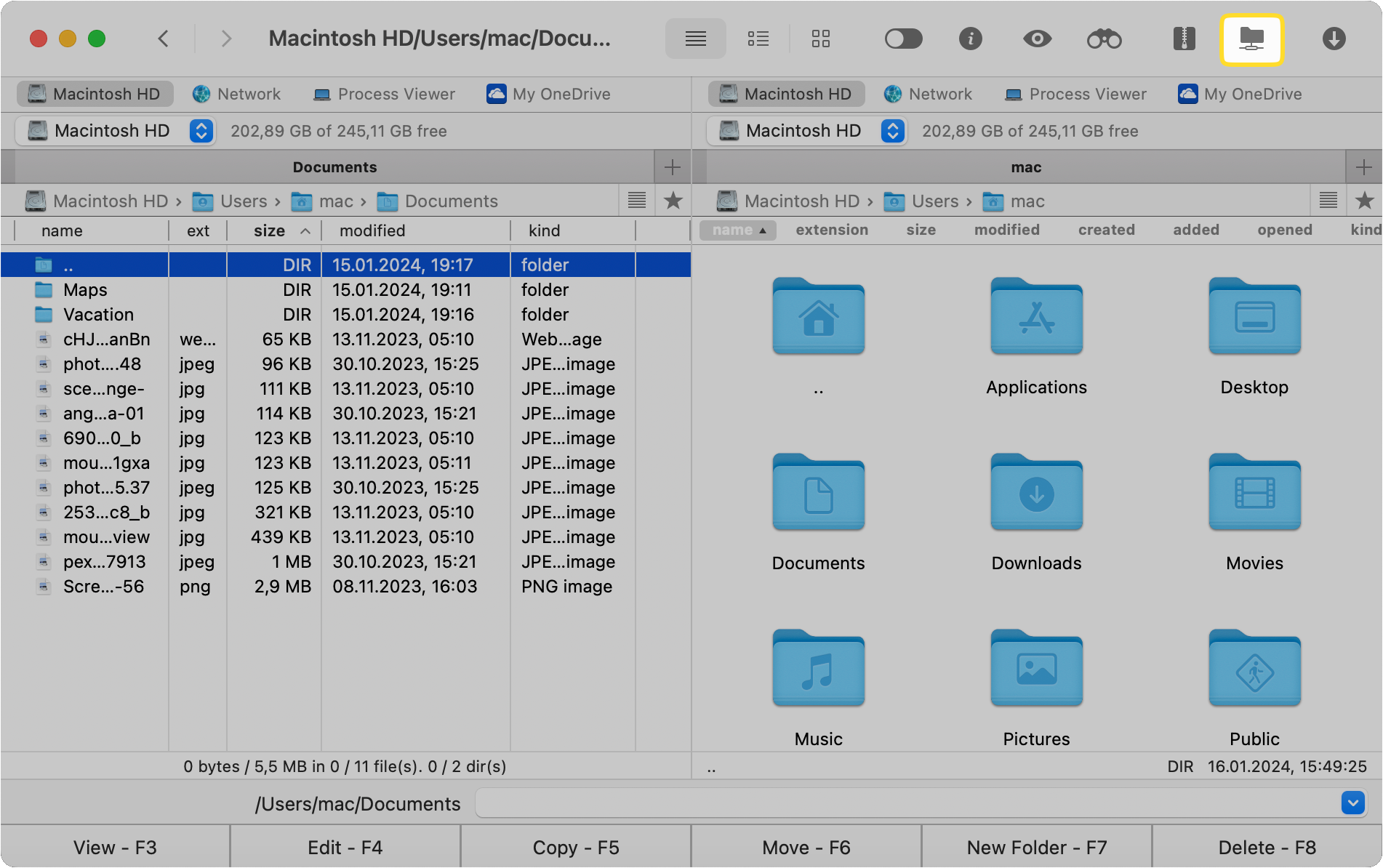
Launch the app and open the Connections Manager. You can do this in three ways:
- Click the Connections Manager icon on the toolbar.
- Go to “Window” > “Connections Manager”
- Use the ⌘F keyboard shortcut
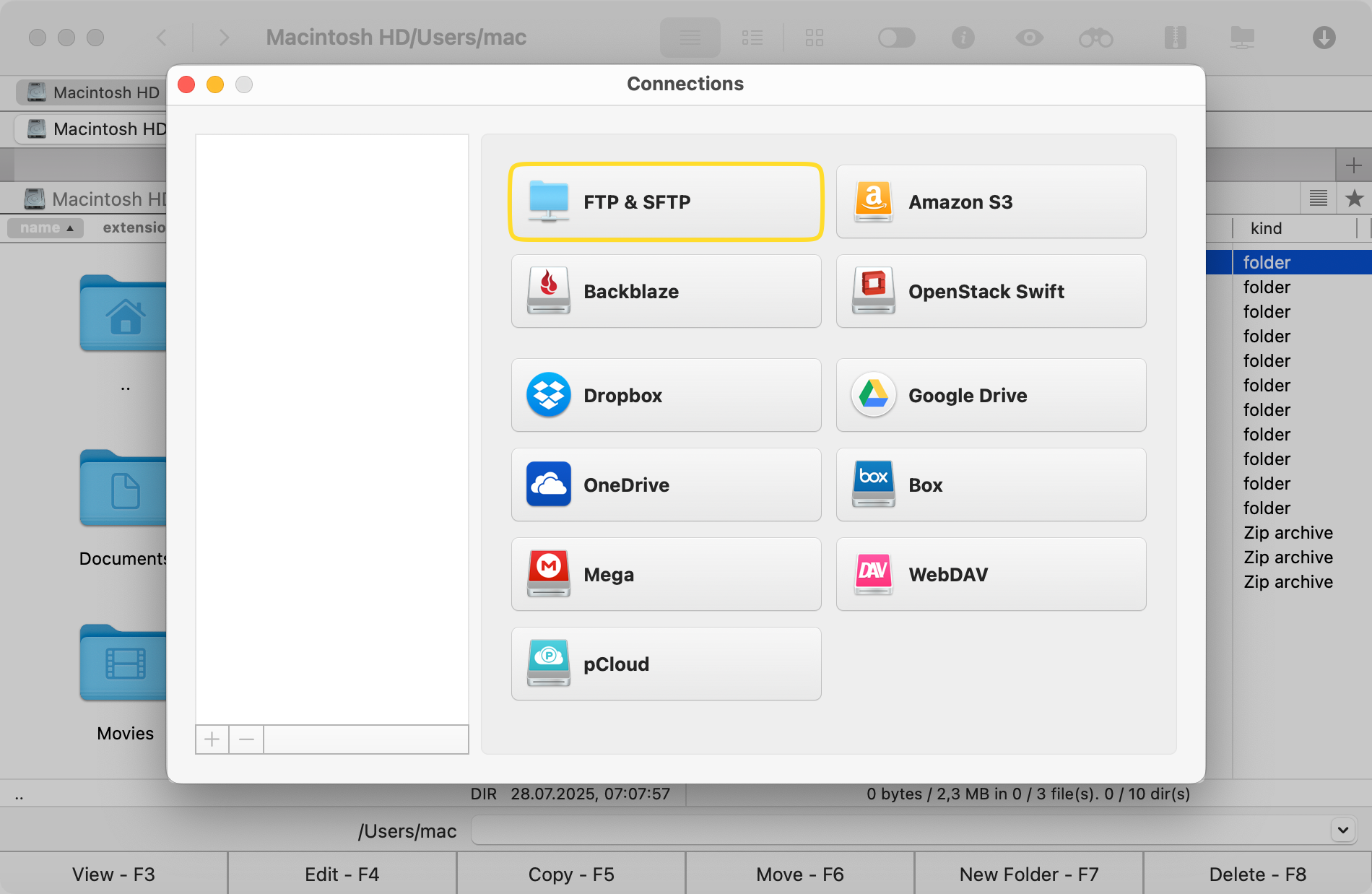
Select the “FTP & SFTP” icon in the Connections window.
Enter the connection details, including the connection name, server address, port, username, and password.
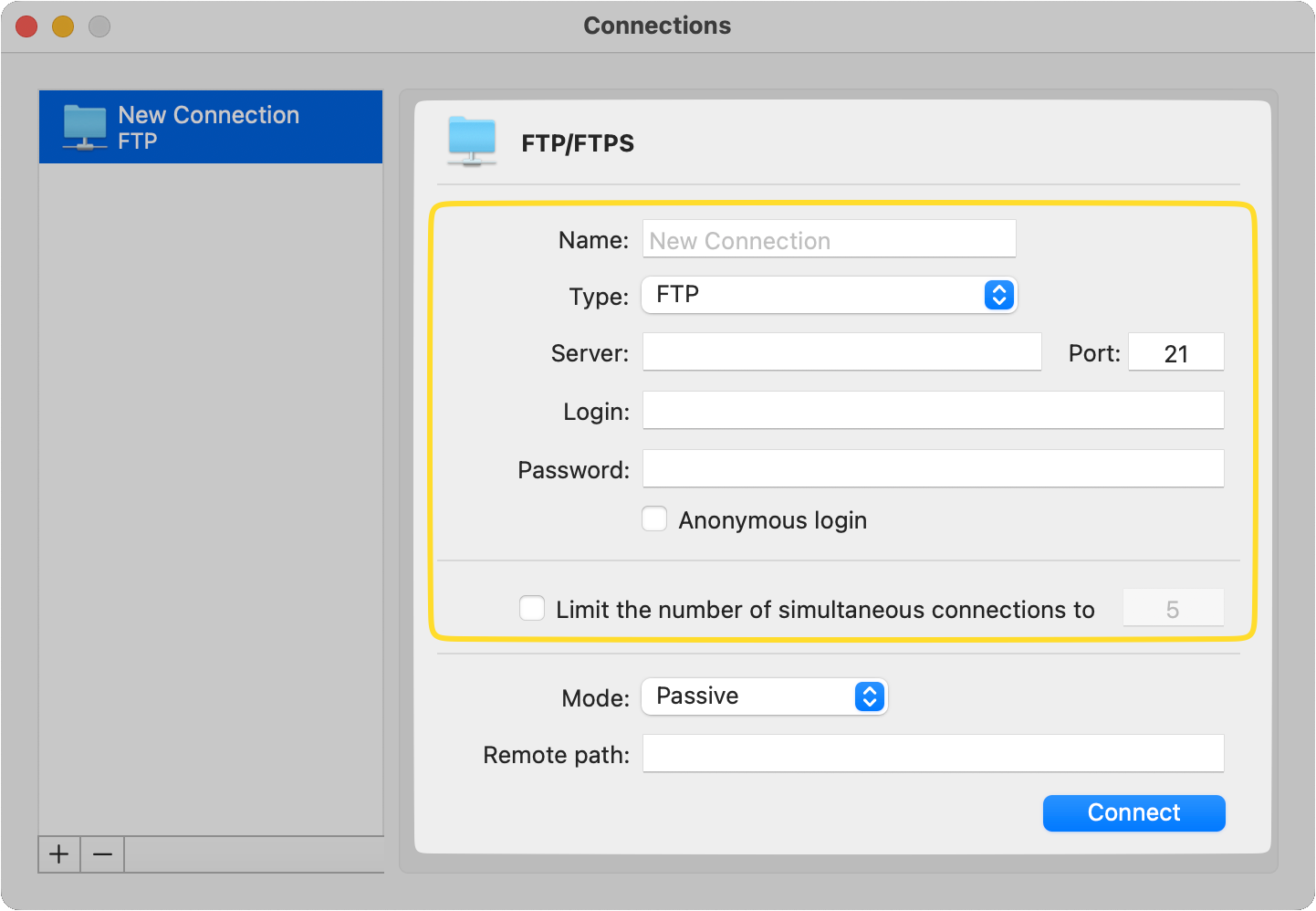
Click on the “Connect” button.
Once connected, your FTP server appears inside Commander One like a regular folder. From there, you can upload, download, rename, move, delete, and organize files with just a few clicks. This gives you the convenience people used to expect from an FTP browser, but with much better control, security, and macOS support.
Conclusion
The removal of FTP browser support is a natural result of evolving security standards and changing usage patterns. Rather than a limitation, it’s an opportunity to adopt a better workflow. Dedicated FTP clients offer everything a browser never could: secure encrypted connections, full file management, speed, and reliability.
For macOS users, Commander One delivers all of this in a single, elegant app. You can connect to servers, transfer files, organize folders, and manage cloud storage without switching between apps. Whether you manage a simple web server or a multi-cloud setup, Commander One is the smarter choice.
Frequently Asked Questions
Mac provides limited read-only FTP access via Finder’s “Connect to Server” feature (⌘K). You can browse directories and download files, but for full FTP functionality on a Mac, a dedicated FTP client such as Commander One is required.
No, connecting to an FTP server via Safari or any other web browser on a Mac is no longer possible. If you want to access and manage files on an FTP server from macOS, a dedicated FTP client like Commander One is the only option that gives you full control.
Chrome’s native FTP support has been discontinued. On macOS, you have two options: use Finder (⌘K, then enter your FTP address) for read-only access, or use a dedicated FTP client like Commander One or CloudMounter for complete file management capabilities.