Does Mozilla Firefox Support FTP on your Mac?

If you’ve tried opening FTP in Firefox lately and hit a dead end, you’re not alone. Many users ask, “Does Firefox support FTP anymore?” and the answer is no. Typing an ftp:// address into the browser no longer opens the server like it used to.

While this was a deliberate step toward a more secure web, it leaves Mac users without a quick way to browse or download files from FTP servers. This guide explains why browsers dropped the feature and why switching to a dedicated tool like Commander One is better for managing remote files on macOS.

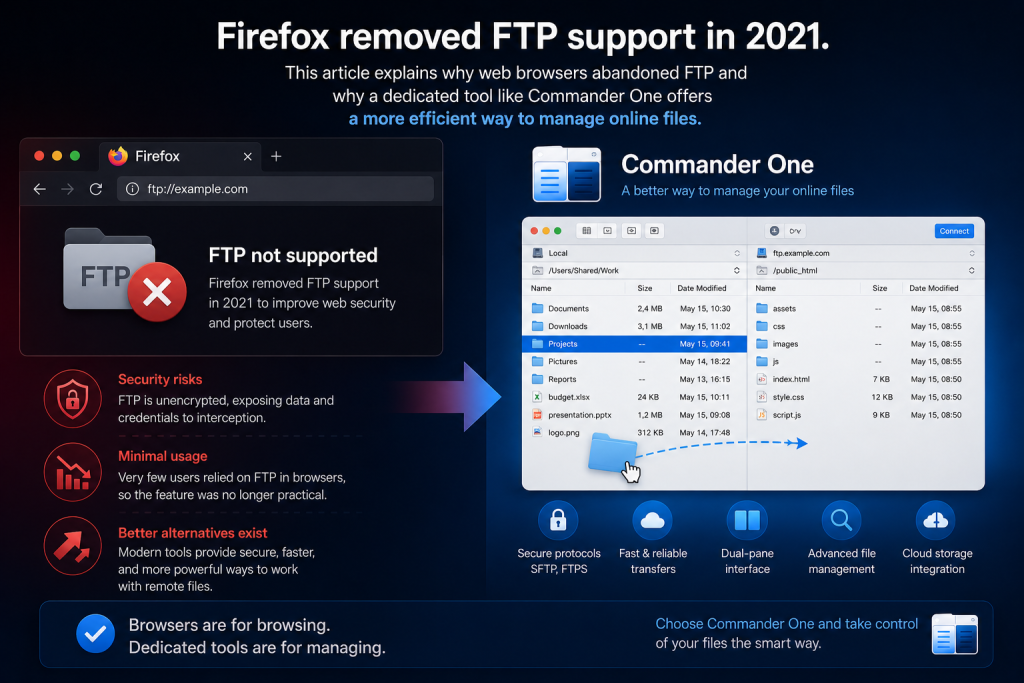
FTP support has been removed from Firefox

Firefox removed FTP support 2021, following similar decisions by other major browsers, including Google Chrome and Microsoft Edge. The goal was to tighten web security and modernize file transfer. The FTP protocol itself wasn’t broken, but its continued presence in web browsers created more problems than it solved. There were three main reasons why FTP on Firefox was removed.

  1. Security concerns
    Standard FTP transfers data in plain text, which means login details, files, and other information can be stolen, spoofed, or modified during transfer.
  2. Minimal usage
    Very few people were left using FTP directly inside browsers. Most users now access files through cloud storage, HTTPS downloads, hosting panels, or dedicated FTP client apps. Because usage was low, maintaining support for the old FTP browser was no longer worth the security risk.
  3. Better alternatives exist
    Dedicated FTP clients and cloud services offer safer, more fully featured ways to manage remote files. They’re much more useful than trying to handle FTP in a browser.


Web browsers were built for viewing websites, not for managing file systems. Besides, modern security standards now favor encrypted protocols like HTTPS and SFTP, so browsing FTP links in a web browser is considered an outdated and insecure practice.

So, if you’ve been searching for how to open FTP link in Firefox, the simple answer is: there’s no built-in browser setting, extension, plugin, or add-on that fully restores the old FTP experience in Firefox.

If you need to work with an FTP server on your Mac, you’ll get a better and safer experience from a dedicated FTP client.

Firefox stopped FTP built-in support

How a dedicated FTP client replaces a web browser

Firefox’s lack of FTP support makes one thing clear: a dedicated FTP client is now the right tool for connecting to remote servers.  

An FTP client is an app designed to connect to FTP servers and manage remote files. Instead of only letting you view or download files, it gives you proper tools to upload, rename, move, delete, edit, and organize them on the server. It also supports secure protocols (SFTP and FTPS alongside traditional FTP) and offers stable, high-speed transfers even for large batches of files.

This is a big improvement over old browser-based FTP access. The level of control you get with a proper FTP client is unmatched.

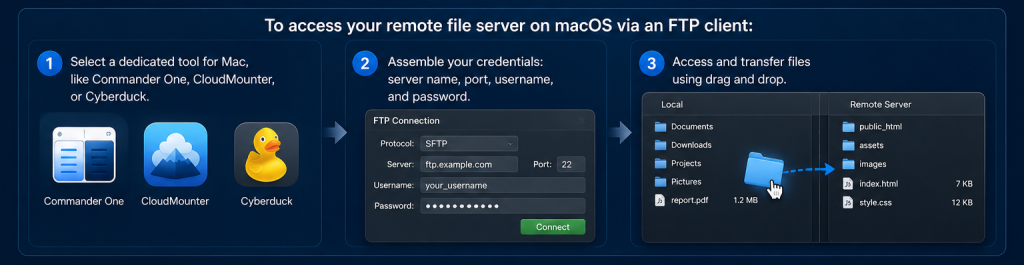
Follow these steps to access a remote file server on macOS through an FTP client:

Access remote file servers with FTP client on macOS
1

Choose a Mac FTP app, such as Commander One, CloudMounter, or Cyberduck.

2

Gather your FTP server details, including server name, port number, username, and password provided by your hosting service or server admin.

3

Add the connection inside the app and connect to the server.

4

Move files between your Mac and the server using drag-and-drop.

Commander One: The optimal alternative for your Mac

Commander One is a powerful, user-friendly file manager for macOS with built-in FTP access. It’s a modern alternative to browser-based FTP that lets you manage both local Mac files and remote server files from one place.

Instead of opening an FTP site in a separate browser tab, you can connect your server inside Commander One and work with it like a regular folder. This is especially helpful if you regularly manage website files, client folders, backups, or remote documents.

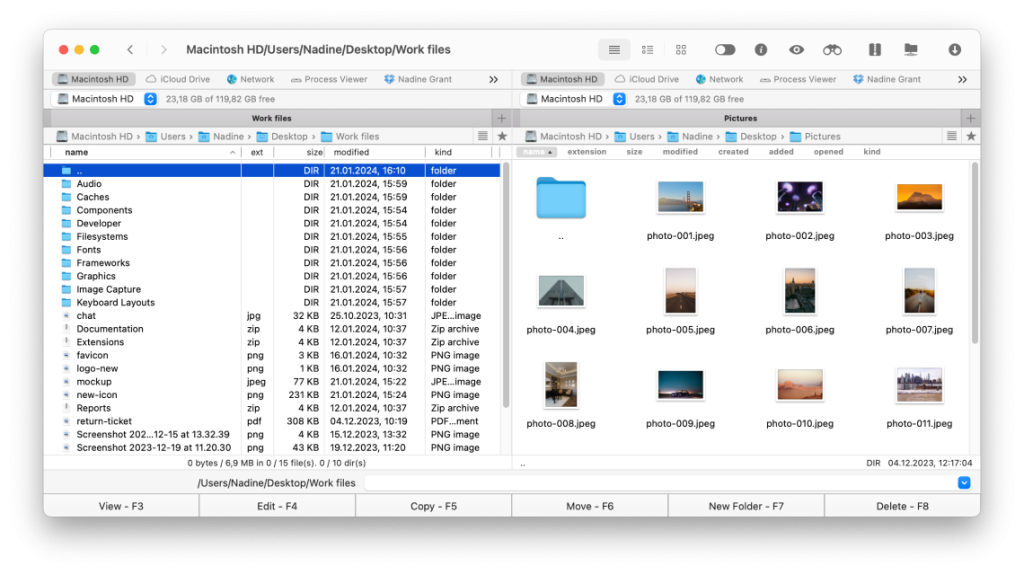
The dual-pane interface of Commander One

Below are some features that make Commander One the go-to FTP client for Mac users:

  • Dual-pane interface: You can view your Mac folder and your FTP server side by side for effortless drag-and-drop file transfers.
  • Multiple protocol support: Commander One supports FTP, FTPS, SFTP, and WebDAV, so you can choose a more secure option when your server allows it.
  • Cloud service integration: It connects with Google Drive, Dropbox, OneDrive, and Amazon S3, so you can manage local, remote, and cloud files in one app.
  • Direct server file editing: You can work with server files more easily without constantly downloading and re-uploading them manually.
  • Remote file search: You can search through remote files, which is helpful when managing large directories.
  • macOS-friendly experience: The app is built for Mac users, so it offers a more optimized and intuitive experience than a basic browser or an outdated plugin.
  • Archive management: Commander One also supports archive features, including viewing, extracting, compressing, and editing archived files.
  • Data protection: Secure protocols and encrypted transfers help keep your online file activity safer than standard FTP in a browser.

How to open an FTP link using Commander One


Even though Mozilla Firefox can’t open FTP links anymore, you can still use those FTP details directly inside Commander One. Here’s how:

1

Download and install Commander One on your Mac.

2

Launch the app and open the Connections Manager. There are three ways to do this:

  • Click the Connections Manager icon in the toolbar.
  • Go to Window > Connections Manager from the menu bar.
  • Press the ⌘F shortcut on your keyboard.
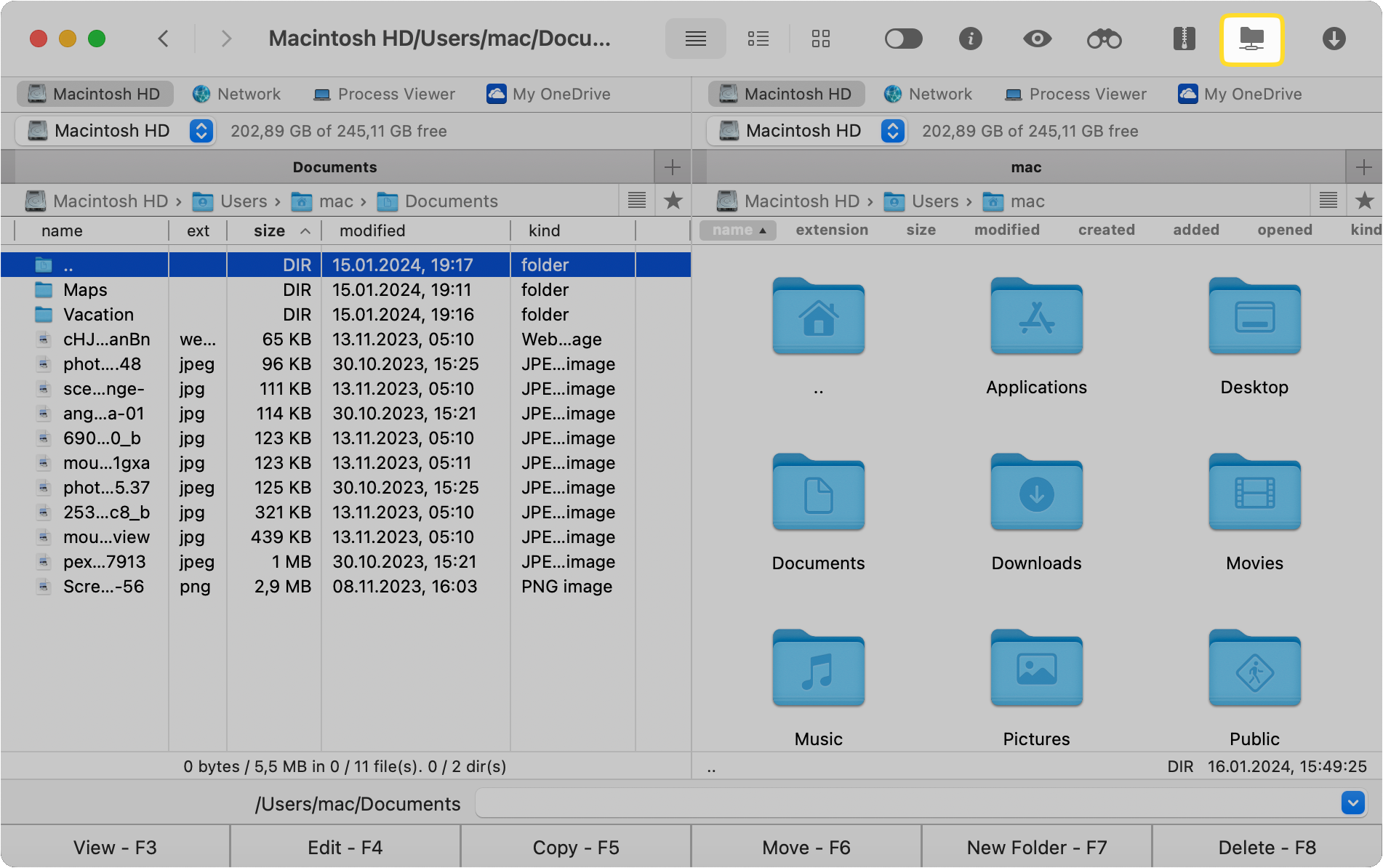
The Connections Manager on the toolbar of Commander One
3

In the Connections window, select the FTP & SFTP icon to start setting up a new connection.
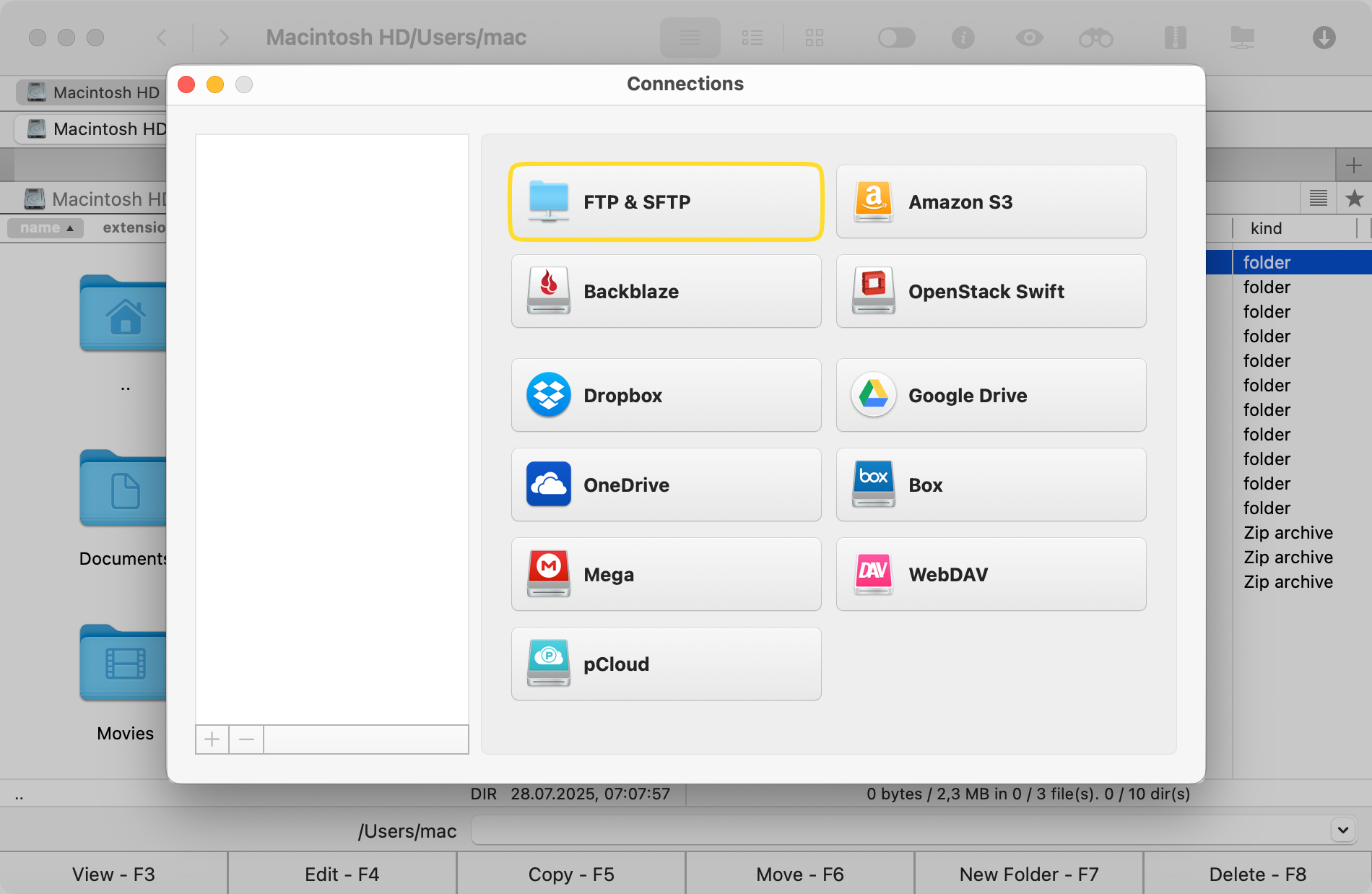
The FTP icon in the Connections window of Commander One
4

Enter your connection name, server address, port number, username, and password.
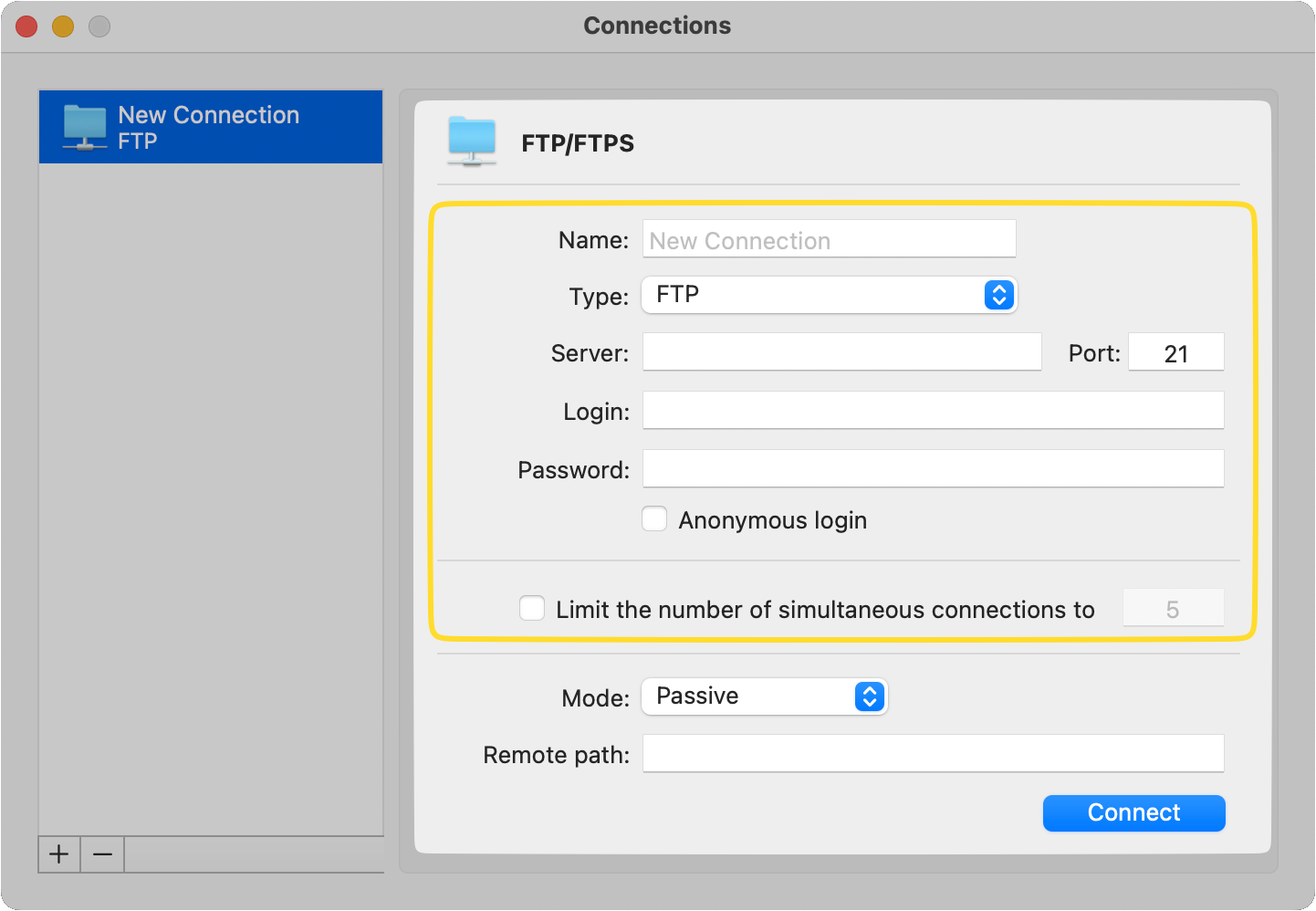
CloudMounter FTP configuration
5

Click on the Connect button.

Once connected, the FTP server will appear like a regular folder. From there, you can browse files, upload new items, download folders, rename documents, delete old files, and move content around using a much more practical interface.

This is the real difference between a browser and an FTP client. Firefox used to be convenient for quickly viewing FTP files, but it was never ideal for actually managing them. Commander One gives you the tools you need to work with FTP servers properly on a Mac.

Final thoughts

Firefox no longer supports FTP links, and that change is permanent in modern versions of the browser. While this may be frustrating for users who still have old FTP URLs saved, it’s important to understand that standard FTP is outdated, limited, and not secure enough for modern browsing.

For Mac users, the better option is to use a dedicated FTP client like Commander One. It gives you safer connections, proper file management, drag-and-drop transfers, cloud support, and a much smoother workflow. You’d love the convenience of managing old FTP servers and newer cloud storage services in one place.

Frequently Asked Questions

Yes, macOS offers some built-in ways to connect to FTP servers, including Finder. However, Finder is limited and doesn’t provide full FTP file management. If you want to upload files from your Mac to a remote server, manage folders, edit server files, and use secure protocols, a dedicated FTP client like Commander One is a better choice.

Chrome dropped FTP support starting in version 88. Like Firefox, Google cited security risks and low usage as the primary reasons. If you need to access FTP sites on your Mac, use a dedicated FTP client instead of trying to open the FTP URL in a browser.

Secure alternatives to FTP include SFTP (SSH File Transfer Protocol), FTPS (FTP over SSL/TLS), and HTTPS-based cloud solutions. These modern methods add encryption to file transfers in order to protect login details and sensitive content (something standard FTP fundamentally lacks).