Opening FTP links in Chrome: Is FTP supported on macOS?

Try to open an FTP link in Google Chrome, and you’ll be met with disappointment – the feature is no longer supported. But what is the reason behind this change, and is there a workaround? This article explains why Chrome removed FTP support in 2021 and how to use a dedicated tool such as Commander One to make managing your online files a lot easier.

Key causes why FTP no longer works in Chrome

People used to be able to directly access FTP servers from Chrome. However, in 2021, all major browsers, including Chrome, ceased FTP support. According to official reports from Chrome Platform Status, this was caused by three main factors:

  1. Better alternatives: Browsers were not intended to manage files. Hence, they only allowed users to read their content on the server, but not upload, rename, or organize it.
  2. Security issues: Standard FTP sends login credentials and files unencrypted, making them susceptible to hacker attacks.
  3. Underutilized: Accessing FTP via browsers was becoming more and more uncommon, which meant less reason for developers to maintain it.


With the introduction of more secure, encrypted standards on the web (such as HTTPS and SFTP), browser-based access to FTP has become a thing of the past.

FTP clients: A dependable file transfer solution

But is the lack of browser support truly an issue? On the contrary, it’s an opportunity to upgrade your workflow. Instead of trying to open FTP links in Chrome and handle them in a very limited manner, you can use a dedicated FTP client to do much more. Since such third-party software is designed specifically for working with remote servers, they have numerous advantages:

  • Secure connections via SFTP and FTPS
  • Stable uploads and downloads
  • Easy file editing and organization
  • Better performance with large files


As a result, unlike browsers, an FTP client grants you full control over your online files.

To access an FTP server via a client:

  1. choose an FTP client (e.g., Commander One, CloudMounter, or FileZilla);
  2. enter your login credentials (hostname, port, username, and password);
  3. connect and transfer files using drag and drop or keyboard hotkeys.

Why Commander One stands out

For macOS users, Commander One makes for a powerful alternative. Along with FTP access, it offers all necessary file management features. Here are some of the aspects that set Commander One apart:

  1. Support for multiple protocols simultaneously (FTP, FTPS, FTPES, SFTP, and WebDAV)
  2. Unified storage hub. Commander One makes it easy to connect all popular cloud services such as Google Drive, Dropbox, OneDrive, and Amazon S3. Since the majority of users employ more than FTP, they appreciate the ability to manage all services from a single interface without syncing every file locally.
  3. Direct file operations. Edit, copy, move, or delete files on a remote server as easily as you would on your local machine.
  4. Dual-pane interface. View local files and remote servers side by side at a glance, transferring them easily and intuitively.
  5. Enhanced search. You can quickly search for files on a remote server as if you were searching on your machine.
  6. Optimized for macOS. The app has been specifically designed for macOS, providing an intuitive and native experience thanks to more seamless system integration compared to cross-platform alternatives.
  7. Archive management. You can compress, extract, and view archive contents as regular folders or even edit your archived files directly without unpacking them.
  8. Advanced security. Commander One supports the secure SFTP protocol to protect your online files. Encrypting your passwords and data, it safeguards them from malicious intent.

How to open an FTP link using Commander One


You need to connect to your FTP server in Commander One. The process is straightforward and lets you manage files as locals on macOS. 

Follow these steps:

1

Download and install Commander One on your Mac.

2

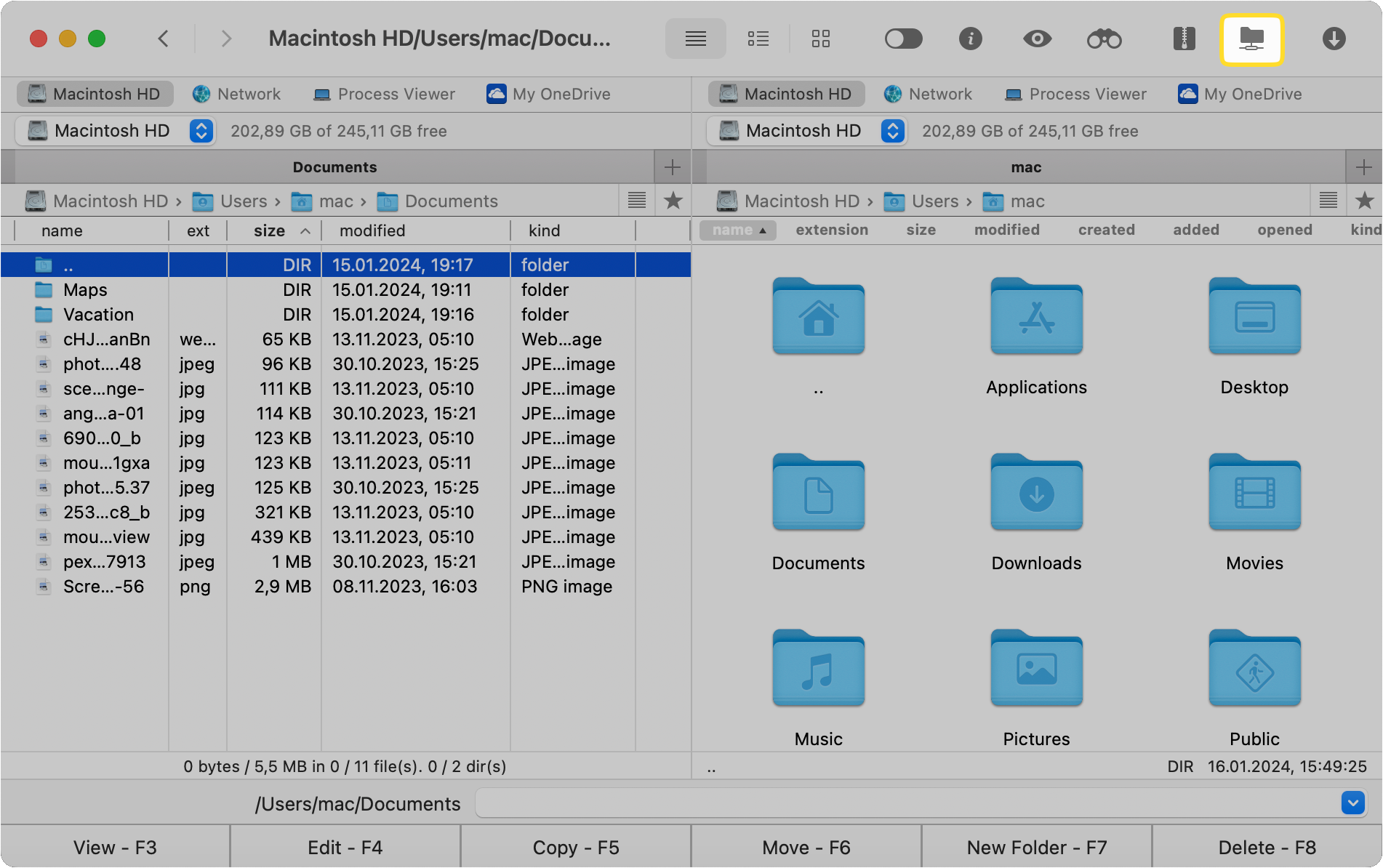
Launch the app and access the Connections Manager by either:

  • Clicking on the respective icon on the toolbar
  • Going to “Window” > “Connections Manager”
  • Using the ⌘F keyboard shortcut
The Connections Manager icon in the toolbar
3

Select the “FTP & SFTP” icon in the Connections window.
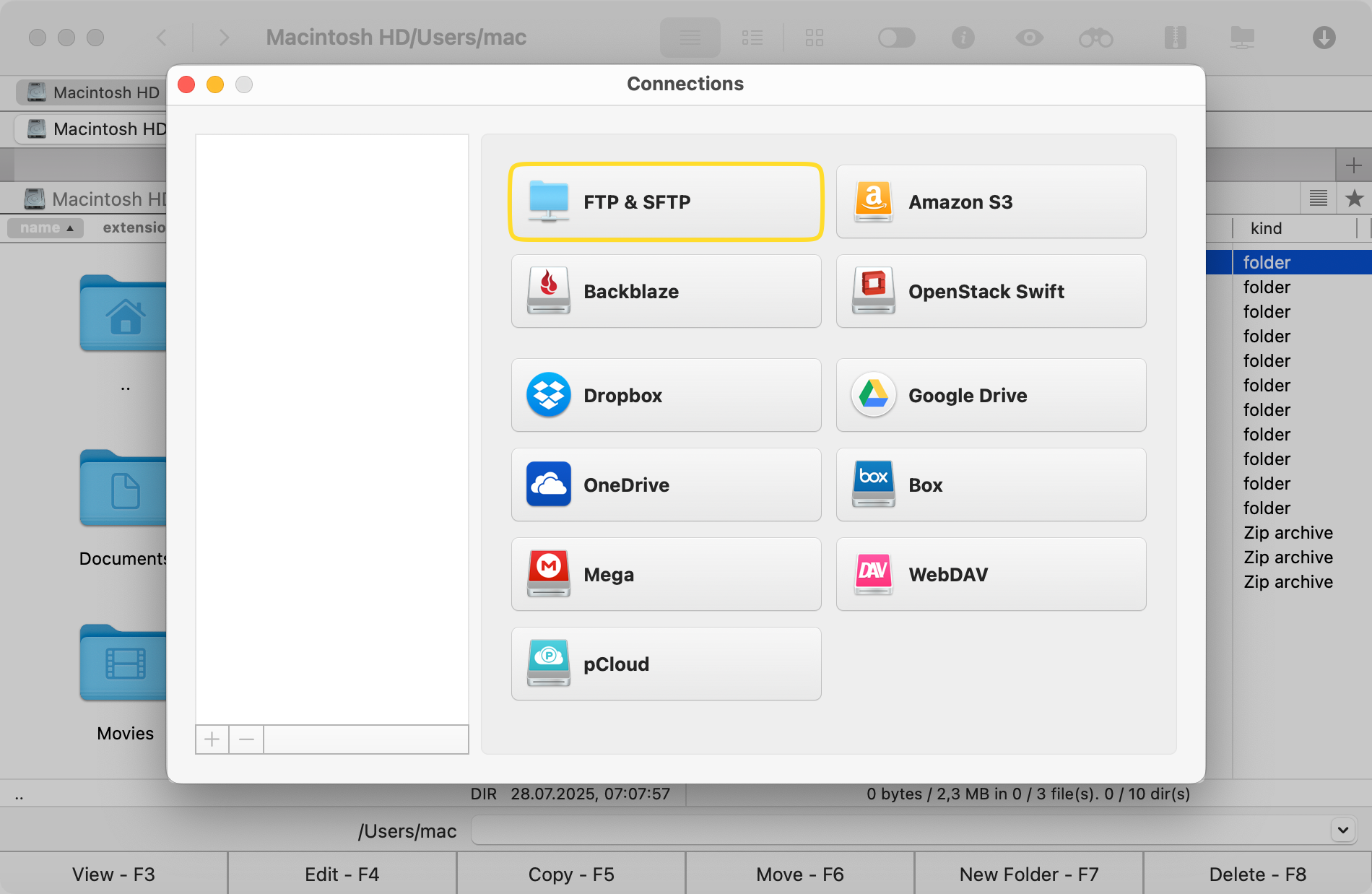
The FTP & SFTP icon in the Connections window
4

Enter a name for the new connection, server address, port, username, and password.
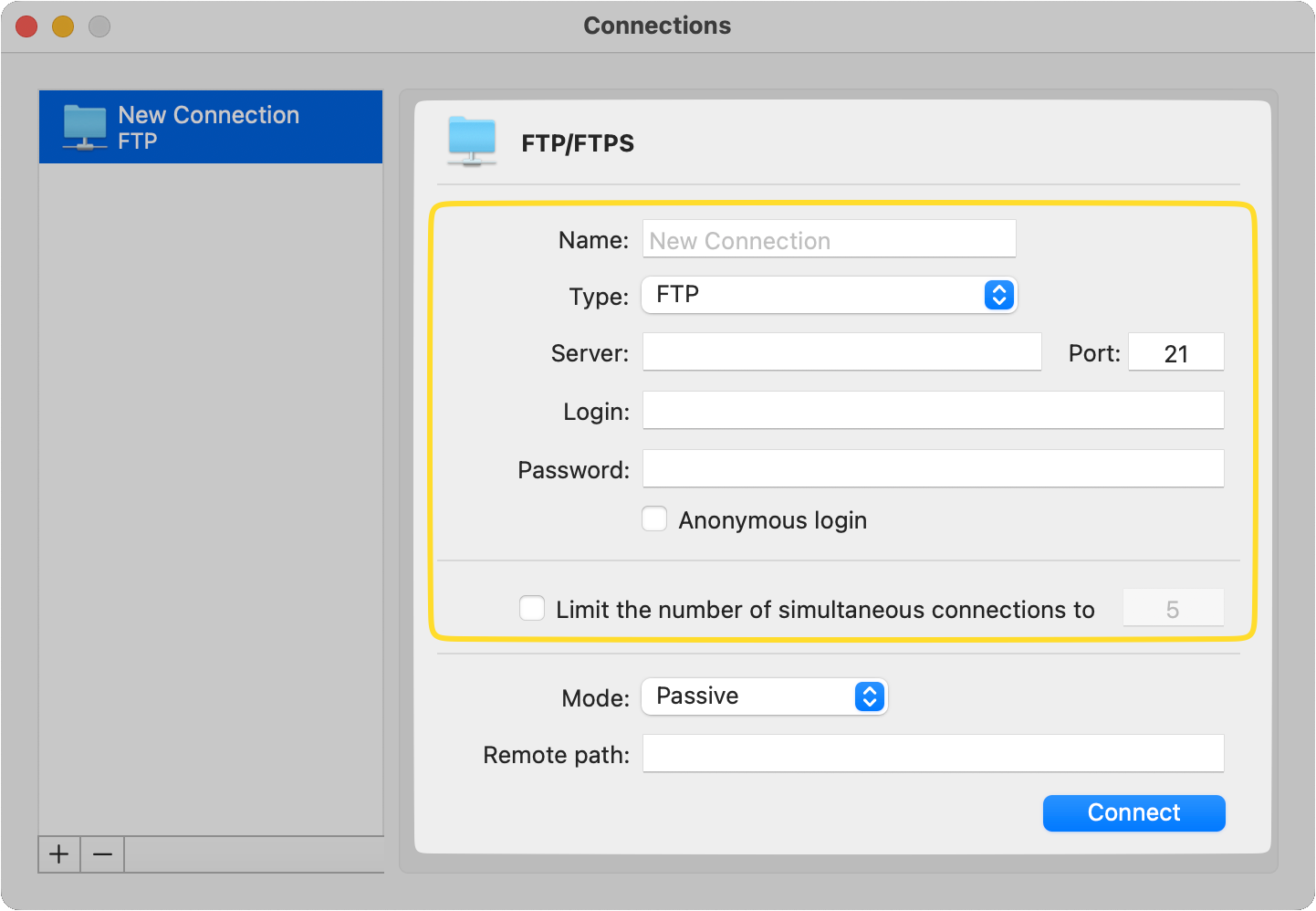
The FTP window on Commander One
5

Click on the “Connect” button.

Once connected, you can access the FTP and its contents as a local folder. But unlike Chrome, you can not only view files, but also work with them however you wish.

Final thoughts

Security concerns and decreased use led Chrome to discontinue FTP support. While frustrating for some, it actually made way for safer and more efficient tools. Dedicated FTP clients are valuable to users who regularly work with online files. Commander One combines remote server management, cloud storage integration, and advanced file handling all in one place. It offers a reliable, all-around approach that saves significant time and effort.

Frequently Asked Questions

On all popular modern browsers, including Firefox, Edge, Safari, and Chrome, FTP is not natively supported. This is due to security issues resulting from unencrypted data transfer and plain-text credential exposure. Dedicated FTP clients such as Commander One or CloudMounter are recommended in order to achieve secure and feature-rich FTP access.

Finder on macOS supports read-only FTP access. Users can browse and download files by entering Go > Connect to Server > ftp://… .

macOS High Sierra and later no longer offer the built-in “ftp” command in Terminal due to the security risks that native support poses. To access FTP on a Mac via Terminal, users need to install utilities like Inetutils (included with Homebrew).